Your launch deck is open, the product screenshots are ready, and you need a video for the announcement post. Exporting the slides is straightforward. Making the result worth watching takes a separate pass for pacing, narration, and mobile readability.
To turn a presentation into a video, simplify the deck, record narration and slide timings in PowerPoint, then export an MP4, or record the presentation in Google Slides and save the recording. For a standard widescreen deck video, use 1920 by 1080 in 16:9, the conventional Full HD dimensions in YouTube's resolution guidance, and check the finished file on a phone before posting.
Choose Your Export Path Before You Touch the Slides
Most founders already have a deck. That doesn't mean the deck should become the launch video.
A presentation built for reading can include qualifications, dense screenshots, and explanations that a feed viewer won't stop to absorb. In a 2022 analysis of 38 videos published in the Journal of Medical Internet Research, length-adjusted average engagement rates were 0.404 for promotional videos and 0.224 for research presentations. Format matters, but those findings aren't a promise that exporting a pitch deck will create an effective promo.
Four ways to turn slides into a video
| Route | Narration | Output | Best use | Main limit |
|---|---|---|---|---|
| PowerPoint Export Video | Recorded voice and pointer movement | MP4 at chosen resolution, 1080p recommended | Walkthrough with a presenter | Long decks need explicit timing |
| Google Slides recording | Recorded voice, camera optional | Recording saved to Google Drive | Voiced walkthrough from a deck | Check format and length before posting |
| Screen recording of a slideshow | Live voice, or microphone muted | Video from your screen recorder | Quick walkthrough without a separate slide-export step | Retakes affect the recorded segment; no per-slide timing controls |
| ShipTeaser | None, silent with optional music bed | Downloadable 1080p teaser in 16:9, 1:1 or 9:16 | 15-second launch teaser from a product URL | No narration, captions, or editing timeline |
ShipTeaser creates a launch teaser from a product URL. ShipTeaser doesn't convert presentation files.
Choose a recorded presentation when your explanation carries the message. Choose manually timed slides for a walkthrough without a voice, and a URL-based teaser for a launch feed.
Check the destination before choosing the canvas. The launch video specifications guide helps separate widescreen presentation requirements from feed formats.
Timing Each Slide to Fit a Fixed Runtime
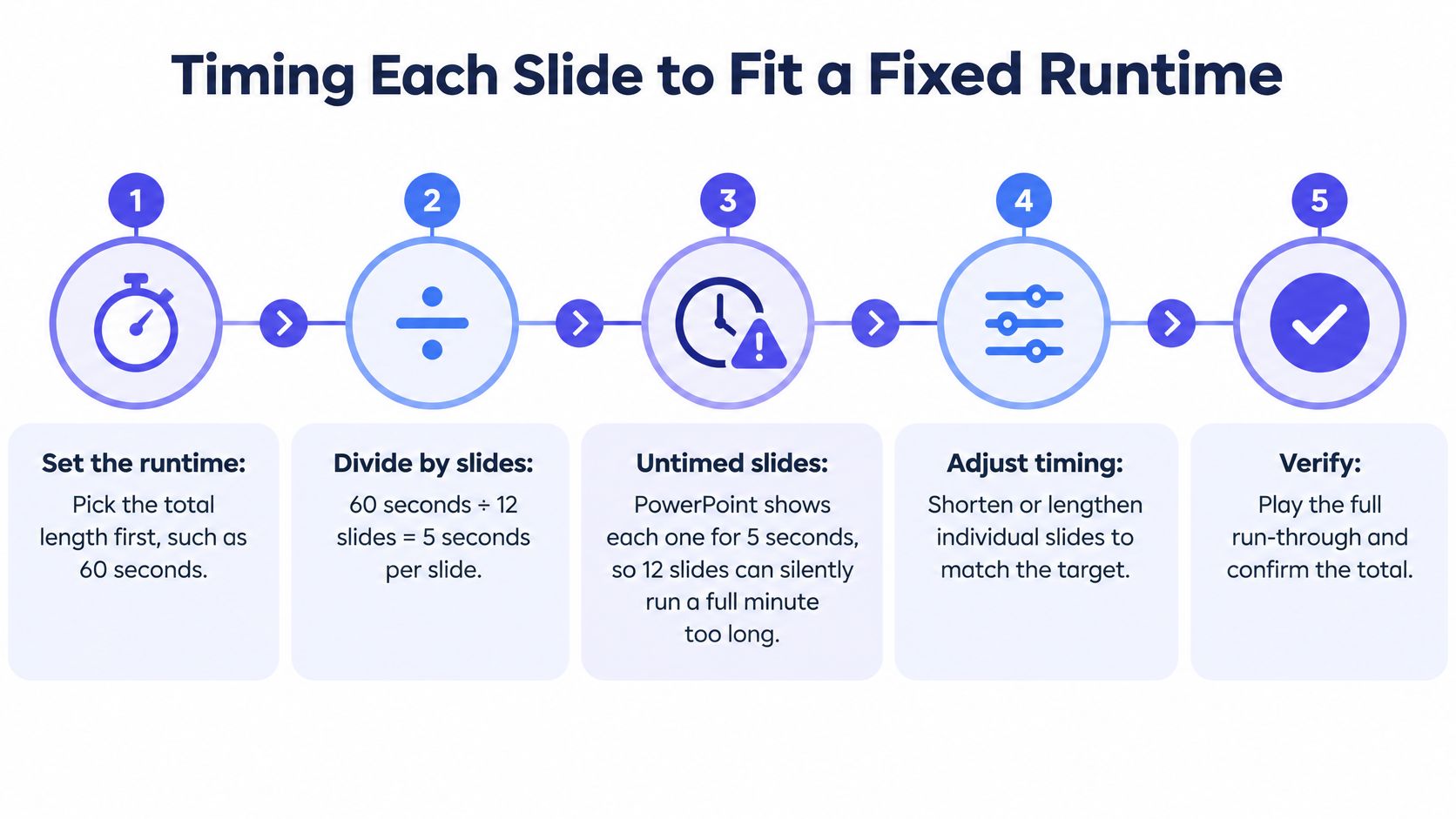
Start with the runtime, not the slide count. Microsoft's PowerPoint timing guidance states that a slide without recorded timing displays for 5 seconds by default.
For example, leaving an extra 12 slides untimed adds a full minute to a planned sequence. If those slides are the whole deck, the same default produces a minute-long video, not an extra minute. Check what you're exporting.
Build a Timing Budget
Divide the target runtime by the number of scenes, then redistribute the time. A hook needs less explanation than product proof or a readable call to action.
These are example production budgets, not platform limits.
Slide timing by target runtime
| Target runtime | Scenes or slides | Seconds per slide | Best use |
|---|---|---|---|
| 15 seconds | 5 scenes: hook, problem, solution, proof, CTA | 2, 3, 3, 3, 4 | Launch teaser for feeds |
| 30 seconds | 6 slides | 3, 4, 5, 6, 6, 6 | Product page or social post |
| 60 seconds | 8 to 10 slides | 5 to 8 each, adjusted to total 60 | Demo or LinkedIn video |
| Full walkthrough | 12 slides | 10 to 20 each, narration sets the pace | Onboarding or investor walkthrough |
Use the timing sequence below as a planning checklist.
Longer doesn't automatically mean more useful. In an MIT study of online educational videos across four courses, students frequently watched less than half of videos longer than 9 minutes.
- Break a static hold: I would give a slide held longer than 6 seconds a purposeful visual change or narration.
- Test the opening: For a launch teaser, cover everything after the first 3 seconds and check whether the hook still communicates a reason to watch.
Narration and Describing What Changes on Screen
Write a spoken sentence for each slide before recording. Cut lines that merely repeat the headline, then add the context a viewer can't get from the image alone.
For a hypothetical workflow demo, replace “As you can see, this is faster” with “The new flow removes the approval handoff between creating the task and assigning an owner.” The second line explains the change without depending on sight or an unsupported performance claim.
Practical rule: Describe the evidence, not the act of looking at it.
Script the Visual Actions
A visual-action script records what changes on screen alongside what you'll say. When a cursor circles a pricing table, explain which plan you're identifying and why. When a chart changes, name the labels, values, and direction of change rather than saying “the green bar.”
The chart presentation below illustrates the kind of visual information that needs a spoken explanation.
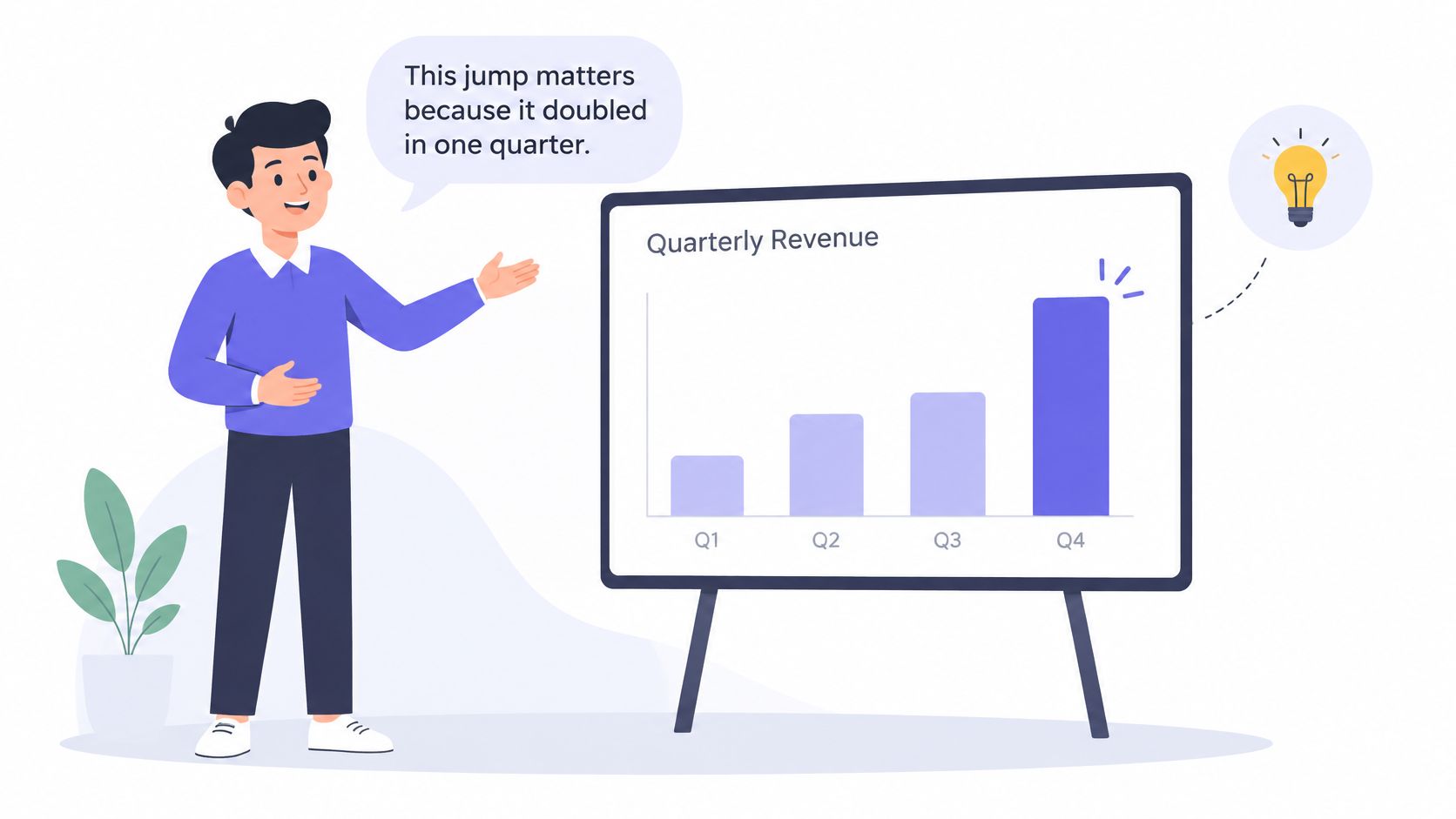
Don't rely on color alone. Use labels, shapes, and explicit language so a blind or low-vision viewer can follow the point.
- Read against the clock: Speak each line within its planned slot. Shorten an overlong sentence before extending the slide.
- Record for ordinary listening: Use a quiet room and keep your microphone position consistent.
- Check different playback devices: Listen through laptop speakers and earbuds. Reject muddy words, clipped endings, and distracting room noise.
For help with recording setup, MEDIAL's guide to narrated presentations is a useful companion. For message structure before recording, use the product video script guide.
How to Export a Deck to Video Step by Step
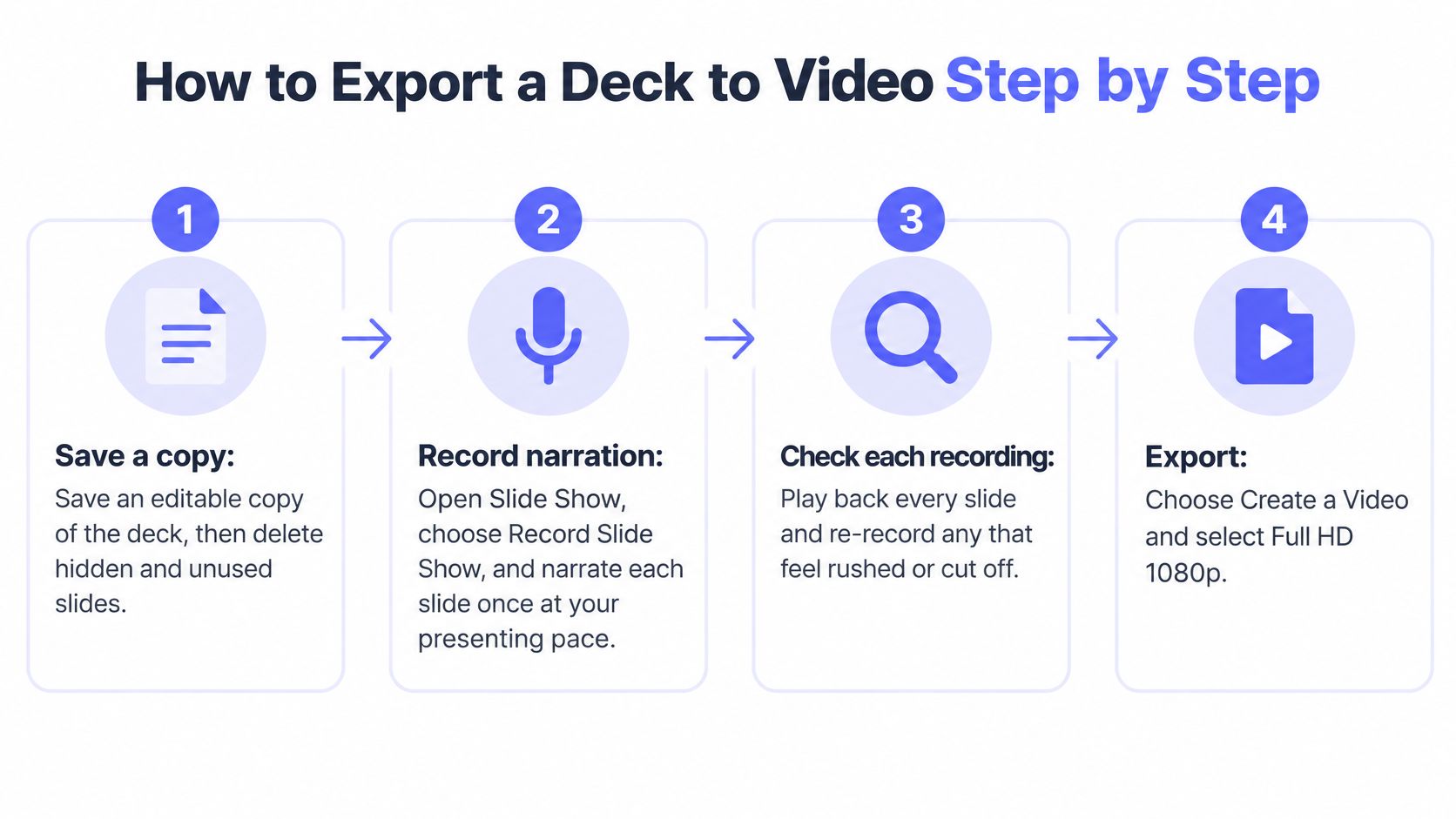
Save the source before changing anything. A finished MP4 isn't an editable replacement for the deck, and a last-minute typo is much easier to fix when the source and export live together.
Microsoft's slideshow recording guide describes recorded timings and manually assigned transition timings as separate workflows. Recorded narration remains embedded in the presentation until you complete the video export.
PowerPoint Export Steps
The following menu path is for desktop PowerPoint on Windows. Labels can differ across versions.
- Save As an editable copy. Keep the original, then delete hidden and unused slides from the production copy. Don't rely on hidden status alone to define the final sequence.
- Open Slide Show > Record Slide Show. Check the microphone, then narrate at your intended presenting pace. Pause through transitions so a slide change doesn't swallow the start of a sentence.
- Review each recorded slide. Confirm the narration starts and ends cleanly, and inspect its timing. An untimed slide can fall back to the default duration instead of matching your script.
- For silent slides, open Transitions > Advance Slide > After. Enter the planned duration and rehearse playback. Check that the export respects those timings rather than applying a uniform hold.
- Open File > Export > Create a Video. Choose Full HD (1080p) and Use Recorded Timings and Narrations when you've recorded them. Set the presentation canvas to widescreen before exporting, rather than stretching a differently shaped deck.
- Select Create Video and save as MPEG-4 Video. Put the MP4 beside the editable presentation in the project folder. Wait for export to finish before opening or uploading the file.
The export sequence is simple; reviewing the recordings is where most avoidable mistakes get caught.
Google Slides Recording
Open the deck and use the recording control in the presentation interface, where available. Start a new recording, present the slideshow, pause or re-record when necessary, then save the completed recording to Google Drive, following Google's slideshow recording guidance.
Download the recording and verify the actual file format and duration. If the recording control isn't available for your account, use a screen recording or download the deck for desktop export.
For a broader explanation of rendering and delivery checks, consult video export workflows from RemotionAI.
A clean export holds each slide for its planned duration, starts narration on the correct slide, and leaves the final call to action visible long enough to read. Slide links and buttons don't become interactive controls inside an ordinary MP4.
Add Motion, Captions and Pre-Publish Checks
Use motion to direct attention, not to make every object move. For a straightforward founder walkthrough, I would restrict transitions to Fade or Morph.
As a production rule, keep each animation between 0.5 and 1 second, with no more than two animations per slide. Time each change to the word it supports, and remove any animation that delays the evidence.
Caption the Finished Export
Export the finished MP4 before creating captions. Follow Texas State's video captioning guidance: captions need accurate wording, synchronized timing, readable chunks, and meaningful non-speech information.
Create a UTF-8 SRT or WebVTT file in a separate captioning workflow. Correct product names, abbreviations, and brand terms first, then review punctuation and timing against the final MP4, not the original narration recording.
If the destination can't reliably retain an external caption track, burn captions into a separate delivery copy. Keep the caption file for future corrections and accessible distribution.
ShipTeaser doesn't add subtitles. ShipTeaser's on-screen message must remain understandable with the sound off, independently of the optional music bed.
- Complete the caption pass: Watch from beginning to end rather than sampling the opening.
- Protect the interface: Keep captions away from product controls, proof, and the CTA.
- Check contrast and safe areas: Leave room for the destination's playback controls and overlays.
- Review muted playback: Confirm that a small-screen viewer can understand the action without hearing narration.
Run a Preflight Before the Full Render
Save the editable deck, then inspect embedded media. Microsoft's presentation-to-video support guide confirms that export can include recorded narration and pointer movements, but a successful render still needs inspection.
For a practical test, export a 10-second segment containing your most demanding slide. Include embedded media, an animation, and narration if the deck uses them.
Compress or replace oversized media before the full export. Use media-compatibility options where available, and test in Safe Mode if repeated failures suggest an add-in problem.
Export problems, causes and fixes
| Symptom | Likely cause | Fix |
|---|---|---|
| Every slide shows for 5 seconds | No recorded timing | Re-record narration or set After seconds in Transitions |
| Narration missing from MP4 | Narration wasn't recorded or wasn't included in export | Confirm playback inside the deck, enable recorded timings and narrations, then re-export |
| Export stalls or fails | Oversized or incompatible embedded media | Compress media, replace unsupported files, test in Safe Mode |
| Audio drifts out of sync | Timings edited after recording | Re-record only the affected slides |
| Captions cover the CTA | Caption position wasn't checked on the final file | Move captions up and check the bottom safe area on a phone |
| Platform rejects the upload | Unsupported dimensions or excessive file size | For a widescreen destination, re-export at 16:9, 1920x1080, then compare with platform limits |
| Text unreadable on a phone | Slide built for a projector | Rebuild with larger type and fewer words |
Verify the Uploaded Copy
Play the full MP4 on desktop and phone. Inspect narration, captions, aspect ratio, file size, animation timing, missing text, clipped branding, and the final frame.
Then upload a draft and watch the hosted version. Processing can rescale the image, soften small type, or change how captions and controls overlap.
A file that plays locally has passed an export check. A file that works on the destination has passed a release check.
For a different visual approach, the AI motion graphics guide explains how to communicate product value without treating every scene as a conventional slide.
Decide Whether a Deck Video or a Teaser Fits Your Launch
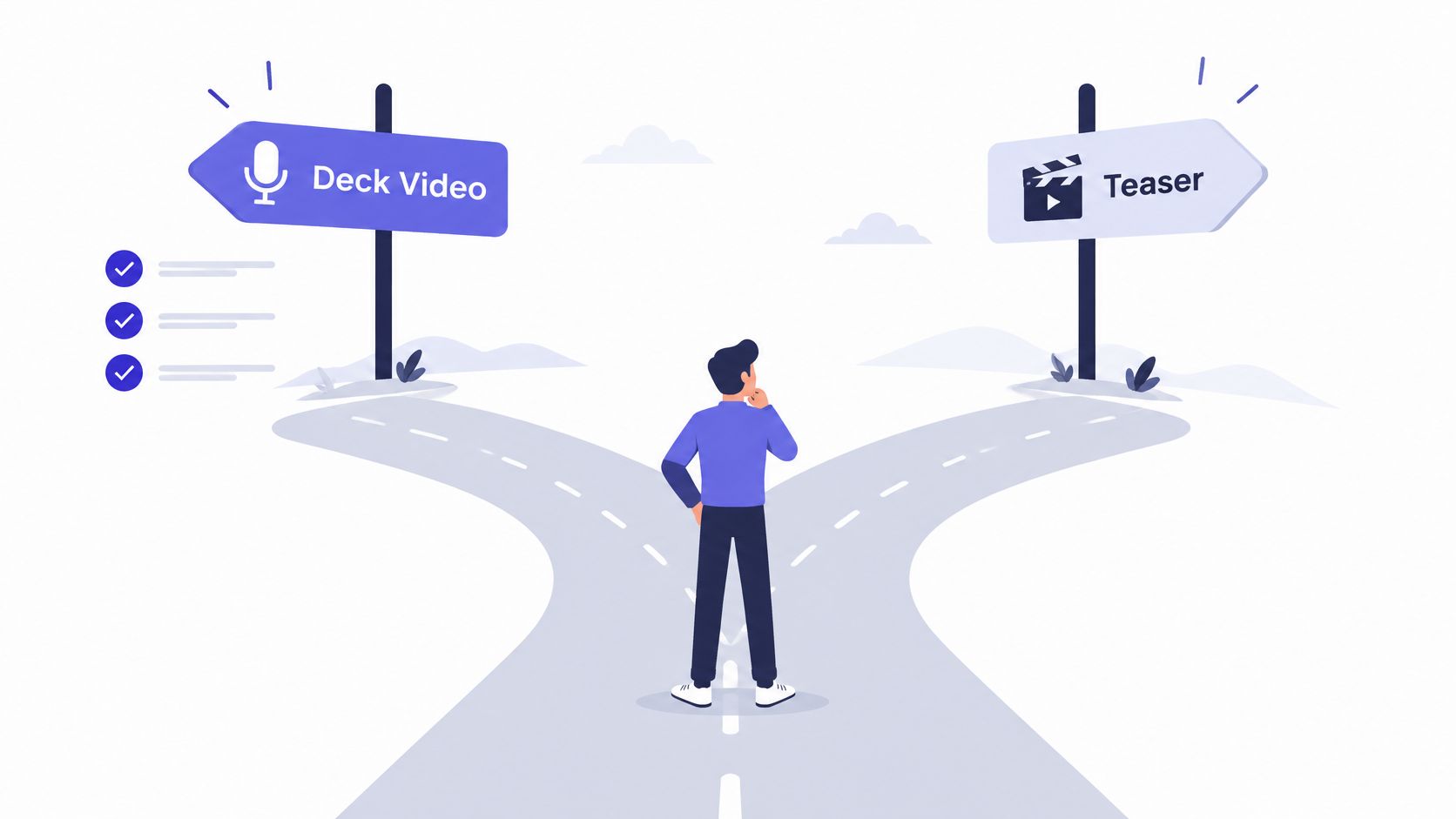
Choose a deck video when the presenter's voice carries the explanation, the planned walkthrough runs longer than a minute, or investors and new users have a reason to watch the full sequence. Choose a teaser when the job is earning attention in a launch feed and the message must work with the sound off.
Use these as different assets, not competing versions of the same presentation. The product demo video versus teaser comparison helps define that boundary.
The decision starts with the viewing situation, not the deck you already have.
What the Teaser Route Includes
ShipTeaser turns a product URL into a 15-second, 1080p silent motion-graphics teaser in about 2 minutes, ready to post. ShipTeaser uses five scenes: hook, problem, solution, proof, and CTA, with 16:9, 1:1, and 9:16 outputs.
Silent means no voice-over; ShipTeaser offers an optional music bed. ShipTeaser doesn't provide narration, subtitles, an editor or timeline, screen recording, stock footage, avatars, prompt-based text-to-video, dubbing, translation, or clip trimming.
- Free start: ShipTeaser's first video is free, with no credit card.
- Recurring plans: ShipTeaser costs $99/mo for 1 video per week, $149/mo for 2 per week, or $199/mo for 4 per week.
Export a deck test segment this week, then generate a ShipTeaser teaser from your landing page. Use hook tips from Social Media Scheduler to evaluate the opening, and post whichever version communicates value in the first 3 seconds.
ShipTeaser offers a URL-based alternative when your launch needs a short promotional asset rather than a narrated presentation. Visit ShipTeaser to turn your product landing page into a ready-to-post teaser and try your first video free.
FAQ
Can I Turn a Presentation Into a Video Without Narration?
Yes. Assign deliberate slide timings, make the on-screen message self-contained, and export the presentation as a video. Don't assume a reading deck will work without sound by simplifying the text and adding clear visual progression.
Does Recording a PowerPoint Automatically Create an MP4?
No. Recording saves narration and timings within the presentation. Create the finished video through the export menu, then inspect the MP4 separately from slideshow playback.
Why Does My Presentation Video Look Bad on a Phone?
Presentation slides often contain text and screenshots designed for a larger display. Increase type size, crop screenshots around the relevant action, and remove secondary details before exporting again.
Can ShipTeaser Convert My Slide Deck?
ShipTeaser doesn't convert slide decks. ShipTeaser generates a short promotional teaser from a product URL, so a narrated walkthrough still needs a presentation recording or export workflow.