Your landing page is live, launch day is close, and the empty video slot is still waiting. You need a short clip that explains the product, not another production project.
To make a product promo video, choose one landing-page promise, turn that promise into timed visual beats, and make every frame understandable without sound. Produce the sequence manually or generate a teaser with ShipTeaser, export the right ratios, and judge the result by viewer retention, clicks, and signups.
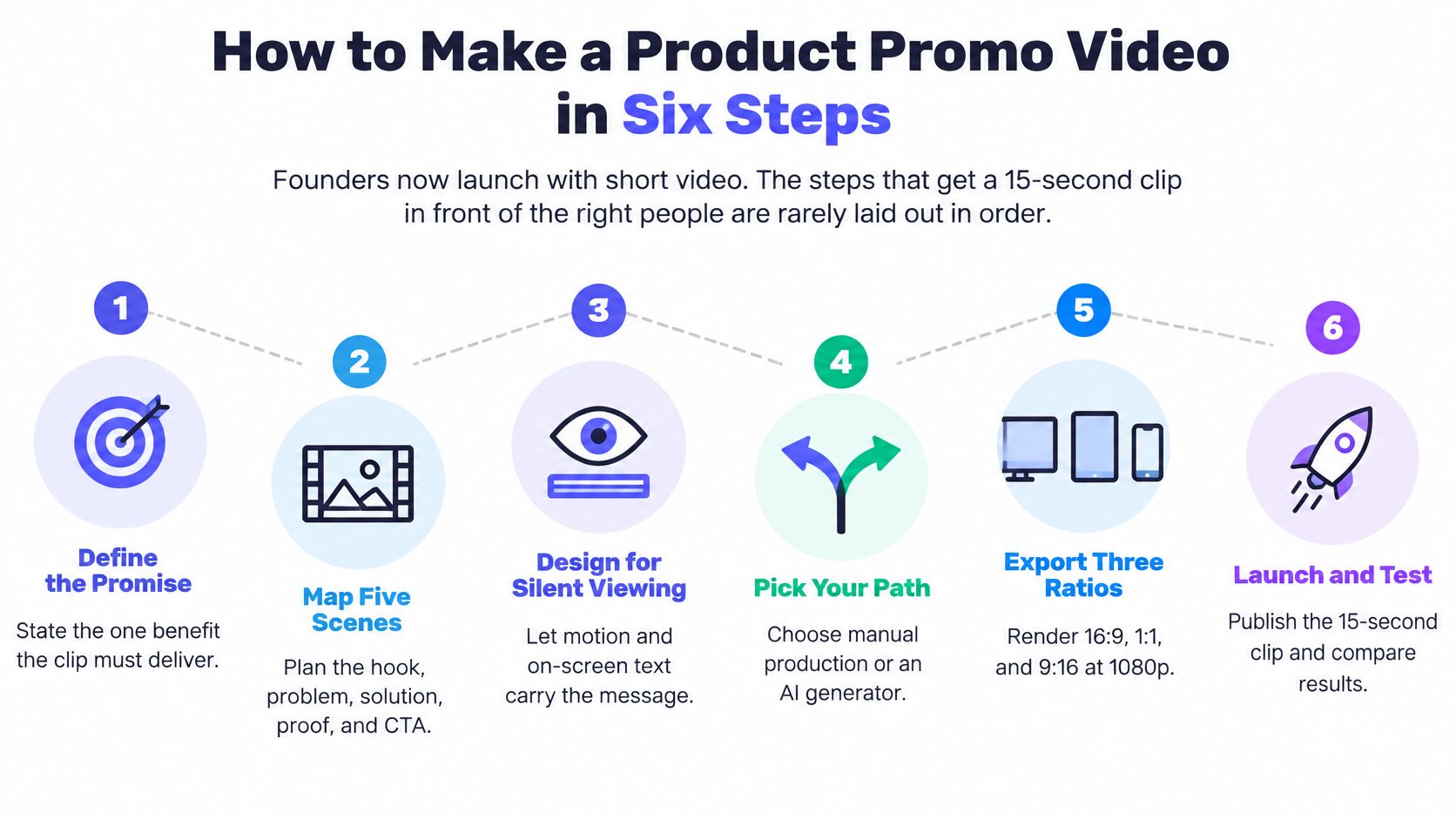
How to Make a Product Promo Video in Six Steps
A launch teaser has one job: help the right person recognize a useful product and take the next step. Don't try to squeeze onboarding, the feature list, and the founder story into the same clip.
HubSpot's 2024 video marketing report found that 73% of video marketers considered video effective for achieving business goals, while short-form video ranked highest for return on investment, engagement, and lead generation among the formats studied. That's a reason to test concise video, not a guarantee that a polished teaser will produce customers.
Use this production sequence:
- Brief one promise and one audience. Name the person watching and the outcome that matters to that person. Leave secondary features out.
- Script the 15 seconds in timed beats. Give the opening a clear problem or result, then show how the product helps.
- Design every frame for silent viewing. Make the interface, motion, and text carry the explanation.
- Produce the clip manually or generate it. Choose manual production when actual interaction matters. Choose a generator when page content can tell the story.
- Export each ratio for its channel. Recompose the layout instead of forcing every placement into the same crop.
- Measure hold rate, clicks, and signups. Decide what to change from viewer behavior, not from how impressive the transitions look.
Practical rule: Finish the message before choosing the animation.
For manual production, Isolate Audio's guide can help you improve your video production workflow by making preparation and review more deliberate. Keep the same brief, asset checklist, and measurement sheet for later launches. The process becomes more useful when you repeat it rather than rebuild it.
Write the Brief and the 15-Second Script
Start with a one-page brief. A founder who can't explain the clip on paper isn't ready to animate it.
Fill in these fields before opening production software:
- Audience: For example, a solo founder who has just opened a software waitlist.
- Promise: Copy one useful benefit from the landing-page headline.
- Proof: Choose an actual product screenshot, a substantiated number, or a user result you have permission to publish.
- Call to action: Pick one next step, such as joining the waitlist or starting a trial.
- First ratio: Choose the placement where the intended audience will encounter the launch.
A teaser that makes competing claims forces viewers to decide which one matters. Make that decision for them. For an invoice app, show the path from unfinished invoice to sent invoice, not invoicing, reporting, integrations, and team permissions.
Map the promise to the clock
The AdsSensor short-form creative guide recommends a four-stage model: hook at 0 to 3 seconds, value demonstration at 3 to 10 seconds, proof at 10 to 12 seconds, and CTA at 12 to 15 seconds. Use that timing as a planning constraint, not a reason to rush unreadable copy.
Four-stage timing for a 15-second teaser
| Window | Job in the teaser | Example for a software launch |
|---|---|---|
| 0 to 3 seconds | Hook: state the problem or show a result | Dashboard number jumping, or a question about sending invoices by hand |
| 3 to 10 seconds | Demonstrate the one action that delivers the promise | Interface state where the task gets done |
| 10 to 12 seconds | Proof or differentiator | One substantiated number or one user result on screen |
| 12 to 15 seconds | Call to action | Product name, URL, and the next step |
Plan a visual change every two to three seconds. That gives you roughly five to seven beats within the teaser. A beat can be a crop change, highlighted control, or completed state; it doesn't need a flashy transition.
ShipTeaser's five scenes are hook, problem, solution, proof, and CTA. The problem and solution scenes fit inside the demonstration window. Scenes organize the argument; beats control its pace.
Choose an opening that earns attention
- Bold claim: State a specific outcome your product can support.
- Big number: Use a genuine, contextualized result, never an invented counter.
- Product action: Put the most useful interface change in the opening frame.
- Pointed question: Ask whether the viewer is still sending invoices by hand.
Don't open on a logo animation or a slow fade. Neither explains why someone should stop scrolling.
Use the product video script guide to turn the brief into scene copy. Read the text aloud to catch awkward phrasing, then preview the sequence muted. If the promise isn't clear by the opening window, rewrite that beat before touching footage.
Pick Manual Production or an AI Generator
A live product workflow can justify manual production. A short teaser built from an existing product page may not need that control. Choose based on what the viewer must see and how much editing time you can spare.
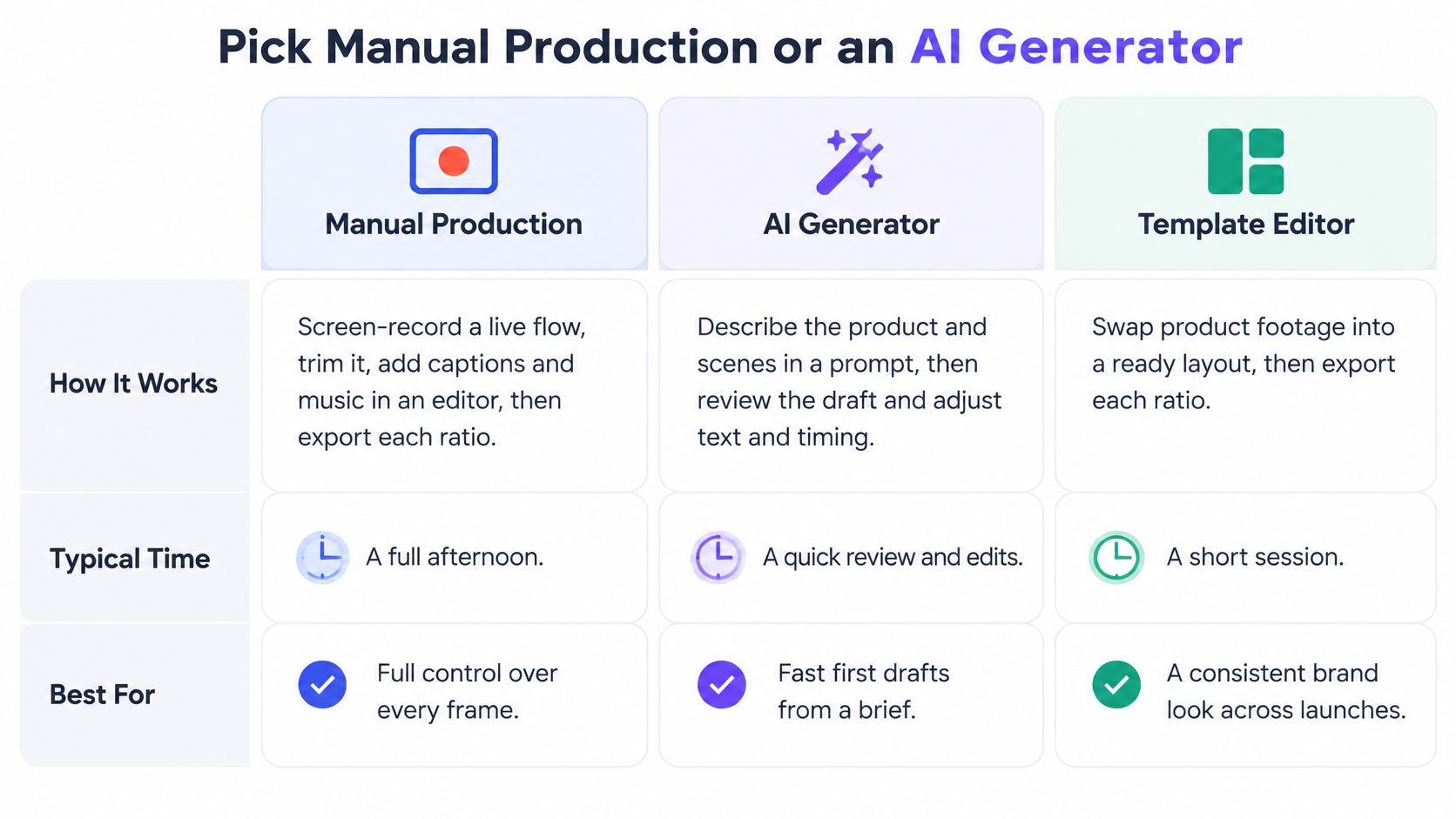
Three production paths compared
| Path | Best for | Time to first cut | Skills needed | Cost |
|---|---|---|---|---|
| Manual screen recording and editing | Products where the live workflow is the story | A full afternoon or longer | Screen recording, timing, editing | Editor cost plus your time |
| Motion-graphics template | Explainers built from text cards and product frames | A few hours to customize | Template editing | Template or software subscription |
| ShipTeaser | A short teaser generated from an existing landing page | Seconds to generate | Pasting a product URL | Subscription plan |
Manual production means recording a live flow, trimming pauses, adding text or captions and optional music, then exporting each ratio. Choose it when viewers need to see actual clicks, a sequence of interactions, or a spoken explanation. Hide personal information and notifications before recording.
Templates suit text-led explainers and product frames. They provide a reusable layout, but you still need to manage text length, screenshot crops, timing, and exports. Replacing placeholder copy does not finish the story.
The comparison chart shows typical differences between manual production, templates, and automated video generation. Use it to compare workflow and scope, not as a feature list for any one tool.
Start from the page when speed matters
ShipTeaser generates a 15-second teaser from a product landing page by analyzing its copy, screenshots, and visible brand cues. The AI product video generator is designed for builders who want a repeatable way to create and download concise promotional videos.
A page-based workflow depends on the page. If its headline is vague or its screenshots do not show the product clearly, the teaser has weak starting material. Improve the page's promise and source visuals before generating a video. For related advice on page content, see how to improve Shopify SEO with AI content.
If the explanation depends on live interaction or speech, choose manual production. Otherwise, try a page-based workflow and judge the result by whether it communicates the promise and earns attention, clicks, or signups, not by polish alone.
Design Every Frame to Work With the Sound Off
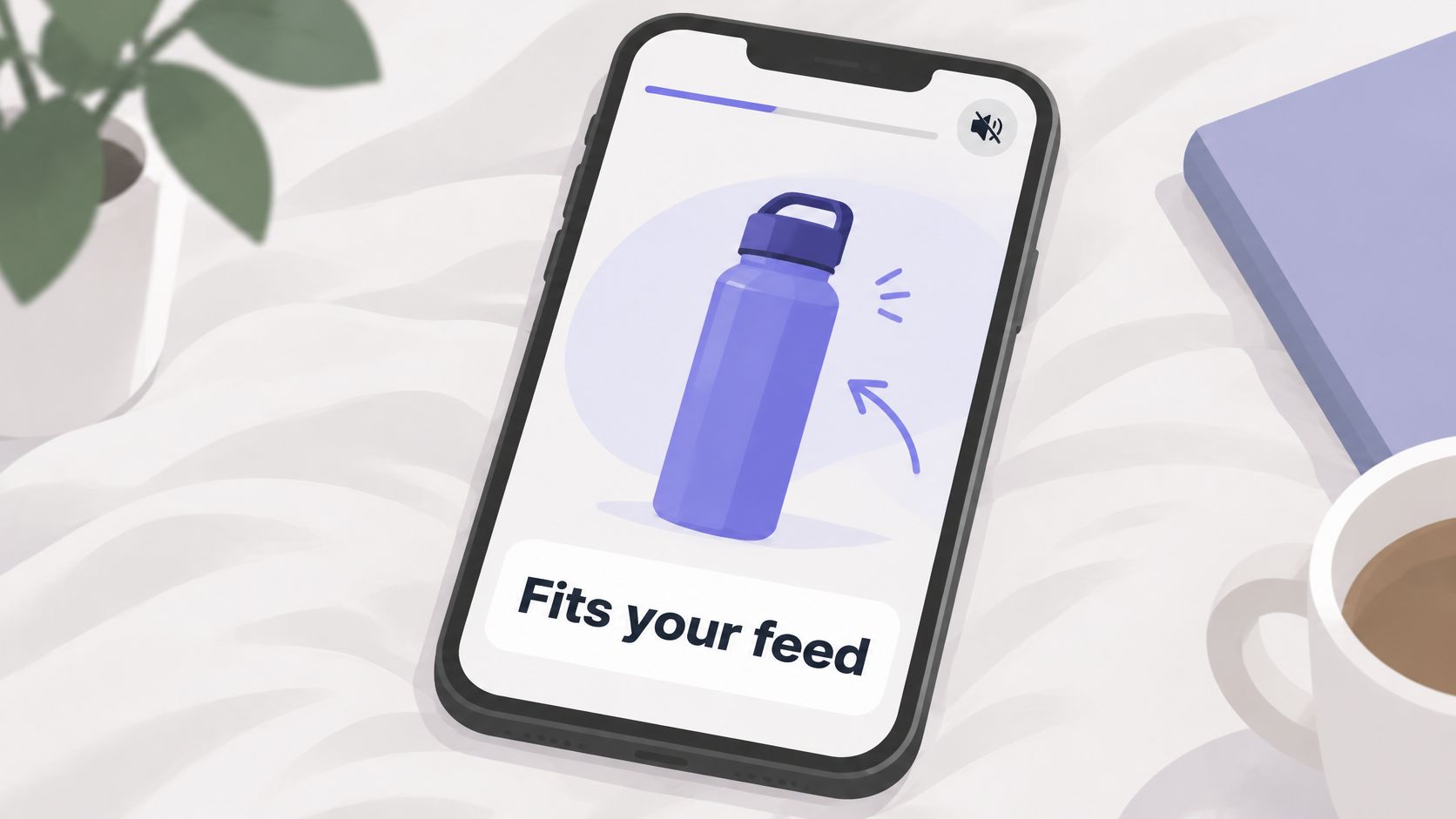
A viewer should understand the product's promise before the opening frame disappears. Show the interface state that makes the benefit concrete, then check the teaser on a phone with the sound off. If the product is still unclear, sharpen the message or choose a more revealing screen.
Silent playback is a real delivery condition. Google Ads documentation describes YouTube in-feed videos that may autoplay with sound off and captions enabled when feed playback is turned on. Make the product explanation clear without relying on audio.
Make the interface readable
- Short text: Aim for three to six words per line. State the outcome instead of listing features.
- One idea: Show the task, then the completed state. Keep unrelated claims out of the frame.
- Strong contrast: Place light text on a solid dark area, or dark text on a light area.
- Phone-sized review: Watch the exported video on a phone without zooming.
- Clear edges: Keep key text away from the top and bottom, where app controls may cover it.
Crop a dashboard to the control or result that changes. A full desktop screenshot can look clear on a monitor and turn unreadable on a phone. Use a close-up that shows the action and its outcome, with enough surrounding interface to make the context clear.
Keep brand cues quiet and consistent
Take the logo, two colors, and typeface from the landing page. Use one accent color for emphasis, keep the logo in the same corner, and finish with the product name and destination. Check generated text for product names and technical terms before publishing. Keep optional music low, and skip it when the interface action already supplies enough movement.
Export Each Ratio for Its Channel
Choose the export format for the destination, then recompose the frames for each ratio. A horizontal layout squeezed into a vertical file can leave the product as a narrow strip. Cropping a horizontal file can cut off controls or text.
| Channel | Ratio | Pixel size | Notes |
|---|---|---|---|
| Reels, TikTok, Stories | 9:16 | 1080 x 1920 | Full-screen vertical; keep the product clear of edge controls |
| Feed posts on mobile | 1:1 | 1080 x 1080 | Square; center the product frame |
| YouTube, X, LinkedIn, landing page | 16:9 | 1920 x 1080 | Practical starting format for link posts and embedded players |
The Meta placement specifications summarized by Metadata support these vertical and square formats for Stories, Reels, and feed placements. Use the table as a delivery plan, not a rule that every placement takes the same format.
Publish in a controlled sequence
- Start with vertical. Upload the vertical file natively to mobile-first channels. Check the publishing preview for obscured content.
- Post the square version. Center the key product state and confirm the CTA remains visible in the feed.
- Place the horizontal version. Use the widescreen file on the landing page and in link posts that support that layout.
ShipTeaser can generate 16:9, 1:1, and 9:16 versions from a submitted URL. Download the appropriate file for each placement and use descriptive filenames, such as teaser-9x16-reels, to keep the posting record clear.
For a channel-specific check, use Arlo Inc.’s 2026 TikTok ad format requirements. The product launch video export guide can help organize the delivery checklist.
Keep the cut, promise, and scene order consistent across channels. Change the canvas and recompose the frames, so format is the variable rather than the message.
Tag each destination link with channel-specific tracking parameters, then test the links on a phone before publishing. Compare results within each channel; audiences may respond differently across placements.
Measure the Teaser Before You Scale It
Views alone prove nothing about signup performance. Someone can watch the whole teaser and still have no reason to visit the page.
Track three video metrics for each version: 3-second hold rate, completion rate, and click-through rate. Then track landing-page signups from the tagged links. Hold rate identifies opening problems; completion helps reveal pacing problems; clicks and signups test whether viewers want the promised outcome.
Test one opening against another
Make two variants that differ only in the opening beat. Compare a bold claim with a product action, while keeping the remaining scenes, CTA, and destination identical.
Let each variant run through a full week of posting before making a decision. That's a practical observation window, not a statistical guarantee. If either version has little exposure, keep collecting observations instead of declaring a winner.
Use these diagnoses as starting hypotheses:
- Low hold rate: The opening may be unclear or irrelevant. Rewrite the opening seconds and check audience fit.
- High hold, low clicks: The promise may attract curiosity without intent, or the CTA may be weak. Make the next step specific.
- High clicks, low signups: The landing page may not deliver the video's promise. Check message consistency, loading, and signup friction before replacing the teaser.
The product launch metrics guide helps connect video behavior to the signup path. Record counts alongside rates so a tiny sample doesn't look more convincing than it is.
Keep the stronger opening, retire the weaker version, and test the next hypothesis. ShipTeaser's $149 monthly plan provides two videos per week, enough output for a pair of variants each week; confirm that the generated pair preserves the variable you intend to test.
FAQ
How long should a product promo video be?
A 15-second teaser works when it can state the product's promise quickly. Use a longer manual demonstration if viewers need more time to understand the workflow.
Do I need a voice-over?
No. Make the core message clear through the visuals and on-screen text, even with playback muted. Check that each text card stays readable long enough to follow.
Can I make a promo without video skills?
Yes. ShipTeaser turns a product landing page into a short teaser, but review the script, imagery, and destination before publishing. Automated production saves editing time; it does not replace a clear promise or a final quality check.
Which ratio should I post first?
Choose based on the first placement: 9:16 for vertical mobile channels, or 16:9 for a landing page or link post. See the export section for the available formats.
A teaser is a diagnostic test. If viewers cannot understand its promise with the sound off, revise the message before investing in more production. Judge it by whether the right viewers stay, click, and sign up.