The usual advice for making an app preview video is to add cinematic transitions, a dramatic opening and plenty of features. That's the wrong starting point for an App Store submission: a polished advertisement can be less suitable than a straightforward recording of the product.
To make an app preview video, choose one useful outcome, capture the workflow from your shipped app and arrange the footage into a clear beginning, middle and end. Make the message understandable without sound, check that every screen and claim matches the released product, then export a separate file for each store's submission requirements.
Build a 15-Second Shot List First
Start with the action a new user needs to understand, not your feature list. A task-management app might demonstrate turning an incoming request into an assigned task. Showing the dashboard, calendar, settings and reporting screens would introduce more interfaces without proving a complete outcome.
Apple defines an app preview as 15 to 30 seconds and accepts H.264 in MOV, M4V or MP4 containers, according to its app preview specifications. Choose the shorter format when one workflow can carry the message.
Plan the promise, proof and result
Use this proposed timing as a working shot list, not as a requirement to cut whenever the clock changes. The opening establishes relevance, the middle provides evidence and the ending gives viewers time to recognize the result.
Shot list for a 15-second app preview
| Time | Beat | On-screen content | Text on screen |
|---|---|---|---|
| 0-2 seconds | Hook | Strongest result in real app UI | One promise under six words |
| 2-11 seconds | Workflow | One complete user action from start to result | Short step labels of three or four words |
| 11-15 seconds | Result and identity | Final result screen, app icon and product name | One call to action, such as Download free |
For the task-management example, the opening could show an organized queue with the text Turn requests into tasks. The workflow then shows a request being opened, assigned and saved. The closing holds on the completed task rather than immediately replacing the evidence with a logo.
Practical rule: Write the screen you need beside every line of copy. If the screen doesn't exist, the script isn't ready to record.
Before capture, read the proposed text aloud to catch awkward phrasing, then review the sequence. Remove words that merely describe the visible gesture, such as tapping a button, unless that action needs explanation.
Use the product video script guide to turn the use case into a compact script. Keep the promise specific enough that the footage can prove it without a spoken explanation.
Cut the Shots Store Reviewers Reject
More cinematic polish can increase rejection risk. Store reviewers evaluate whether the preview accurately represents the app, not whether the edit would make an impressive launch announcement.
The distinction is visible in this review scenario.
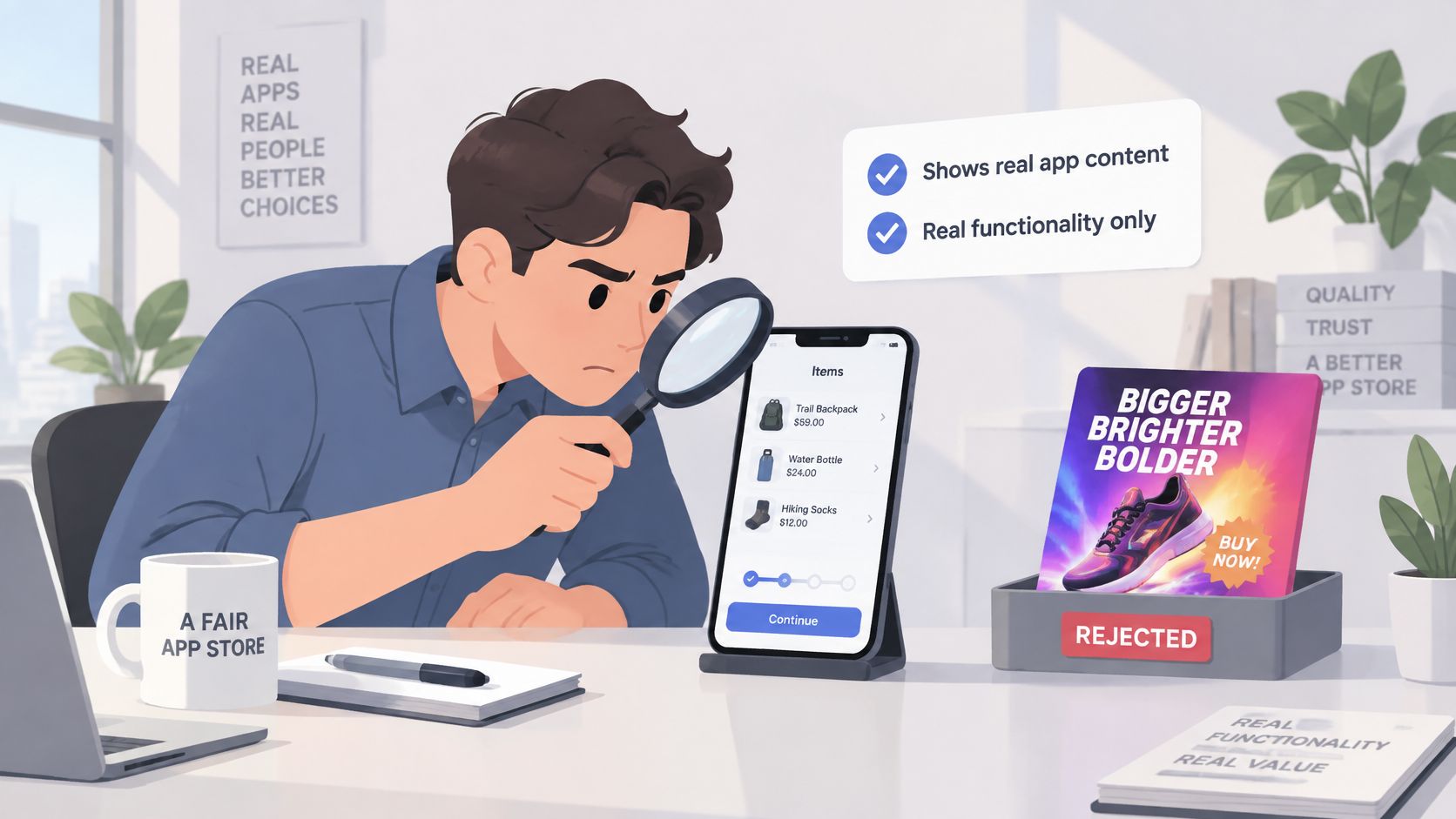
Apple's in-app-content restrictions, summarized in yellowHEAD's app preview guidance, favor real functionality and prohibit transitions that imply features the app doesn't contain. A morph that makes a static report look interactive isn't harmless decoration if customers can't perform that action.
Safe and risky scenes for a store preview
| Scene | Safe in a store preview | Risky in a store preview |
|---|---|---|
| Opening frame | Real screen from the shipped build | Animated mockup of a screen that does not exist yet |
| Transitions | Hard cut between two real screens | Morph that suggests a feature the app lacks |
| Device shots | Screen capture from inside the app | Hand holding a phone or a device being tapped |
| On-screen text | Short, readable at 100 percent scale | Dense paragraph of fine print |
| Claims | Numbers you can show in the app | Statistic with no source in the product |
Audit claims separately from footage
A real screenshot can still carry misleading copy. Check performance promises, availability statements and comparisons against what a customer can access. Don't let an upcoming feature appear as a current capability.
ShipTeaser-generated videos may contain factual errors or misread the brand, so customers must review every video before publishing. Landing-page copy is an input to inspect, not proof that a claim belongs in a store submission.
For founders building a health product, Zee Palm's guide to fixing healthcare app submission rejections provides additional submission context. A truthful video doesn't replace the checks required for the app itself.
Keep promotional concepts in a separate launch asset. If a beautiful shot depends on functionality that hasn't shipped, remove the shot from the store cut.
How to Capture Real Footage From Your Build
Record the app customers will receive. A production build on a real phone gives you a direct way to verify the interface, interaction and final result without relying on a design prototype.
Apple describes previews as footage captured on the device and allows up to three app previews per supported language, according to its app preview overview. Use that capacity to separate distinct use cases rather than squeezing unrelated demonstrations into the same sequence.
Prepare the recording environment
The capture workflow begins with the shipped build, not a promotional mockup.
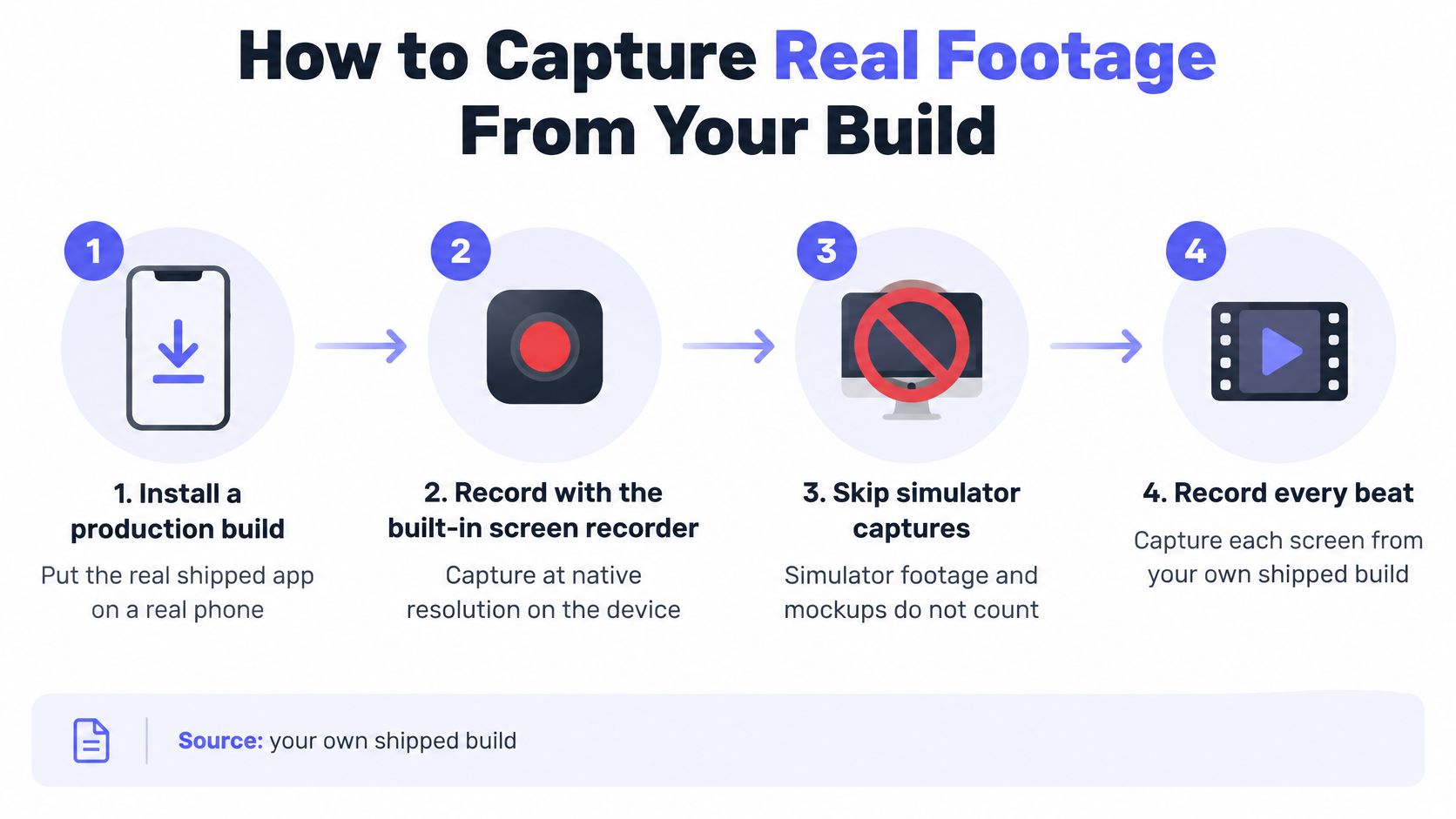
Install the production build on a real phone. Use the phone's built-in screen recorder and capture at native resolution. For this workflow, skip simulator captures so you can inspect the same device behavior customers encounter.
Remove interruptions before recording. Enable Do Not Disturb, dismiss notification banners and remove unnecessary status-bar clutter where possible. A message arriving halfway through a good take means recording again.
Prepare a realistic demonstration account. Populate the workflow with believable, non-sensitive content. Empty lists, placeholder names and internal testing labels distract from the action you're trying to explain.
Capture each beat continuously. Start before the action and leave a comfortable hold after the result. Trim the recording in a separate basic video editor, keeping enough context that the viewer understands what changed.
Verify the interaction against the release. Check permissions, loading behavior and account requirements. Don't demonstrate an action available only through an internal flag or an unreleased account entitlement.
Assign each cut a distinct purpose. Onboarding, the core workflow and a differentiating feature deserve different scripts. Don't reuse the same opening and merely swap the closing label.
Check the build before perfecting the take
A recording problem can expose a release problem. If navigation breaks on a supported device or a permission request blocks the workflow, fix that behavior before capturing the final footage.
For a broader device-checking process, review how 99tests verifies iOS release coverage. Keep release validation separate from judging whether the video looks polished.
The product demo video versus teaser guide helps define the boundary: a demonstration proves an interaction, while a teaser introduces the product.
If a clip shows something a customer can't do today, leave that clip out of the submitted preview.
Make the Preview Work With the Sound Off
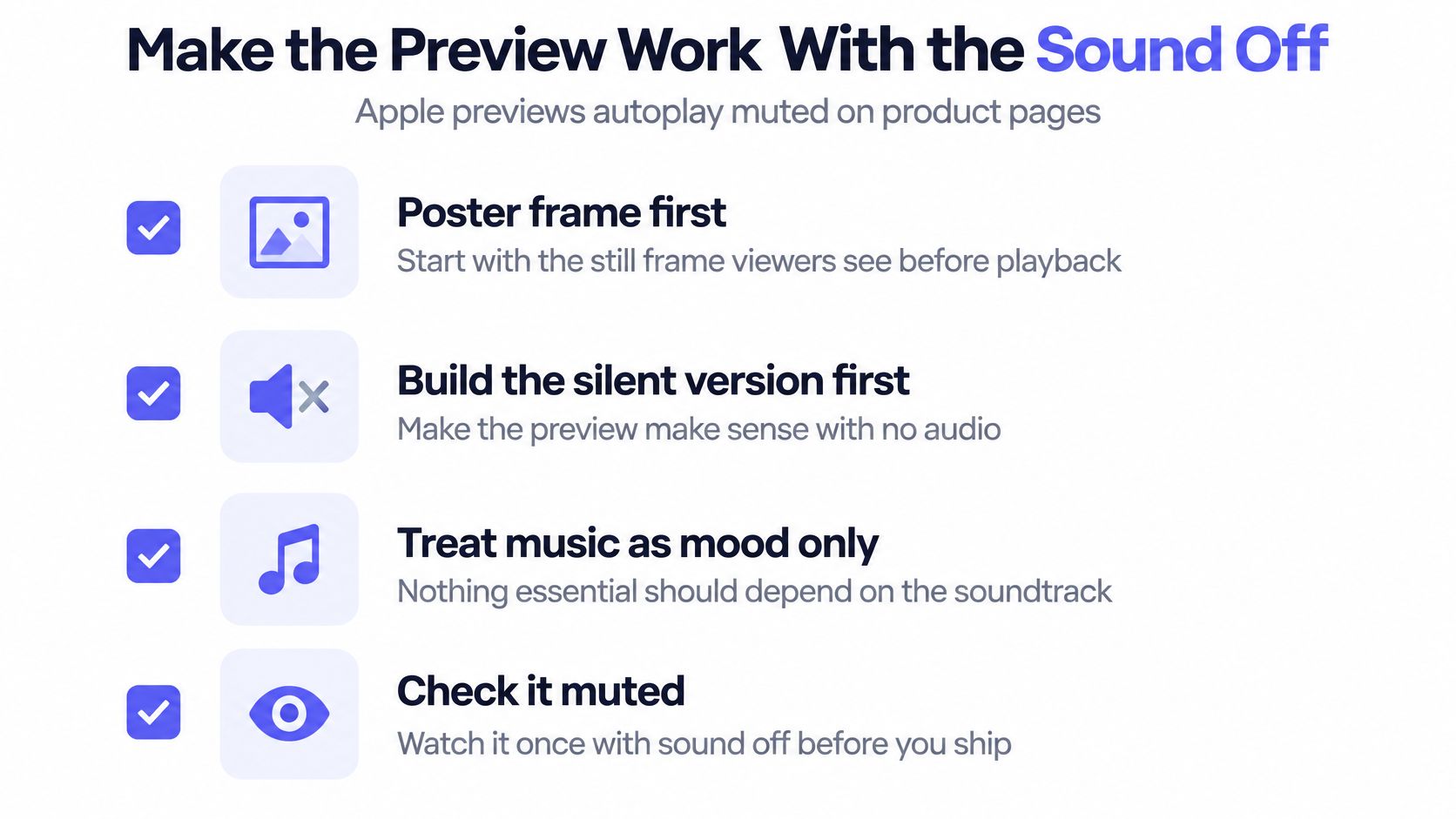
Apple product-page previews autoplay with muted audio, and Apple recommends compelling opening visuals in its product-page guidance. Narration can't rescue an opening that doesn't explain what viewers are seeing.
Build the silent version first. Any optional music should set the mood, not carry information about the product.
Use this checklist while reviewing the export.
Test understanding, not excitement
The poster frame needs to communicate value before playback. Select a meaningful product state, not a decorative transition or an empty loading screen.
The same Apple documentation covers readable pacing and accessible motion. The practical consequence is simple: don't cut away before an unfamiliar viewer has understood the interface.
- Text disappears before you finish reading. Shorten the sentence or extend the hold. Don't solve the problem by shrinking the type.
- The interface becomes a blur. Remove intermediate cuts and retain the action that explains the outcome.
- Store controls obscure the message. Move essential copy inward and inspect the actual phone-sized playback.
- The loop feels like a different claim. End on a product state that returns naturally to the opening, without implying an automatic action the app doesn't perform.
Mute the export and watch at arm's length on a phone. Then ask someone outside the team to explain what the app does after viewing it.
If the answer describes your animation rather than your product, rewrite the opening promise. If the answer is broadly correct but misses the outcome, hold the final state longer.
A landing-page teaser can lean on music and motion, because a visitor chooses to watch it. A store preview earns a glance in a muted feed, so the cinematic polish that flatters a teaser can bury the one interaction a reviewer needs to see.
Silent-review test: A viewer should be able to identify the product action and its result without hearing a word.
Prepare market-specific text outside the editing workflow rather than assuming English copy will suit every audience. Keep the wording compact enough to remain readable when translated.
Export Settings for Apple and Google Play
Use the duration and format choices already fixed for the cut. This table stays on export and submission values, where a wrong setting can waste a review cycle even when the edit is good.
| Requirement | Apple App Store | Google Play |
|---|---|---|
| Previews allowed | Up to 3 per language | 1 video, added as a YouTube URL |
| Codec and frame rate | H.264, up to 30 fps | Set by YouTube upload requirements |
| Target bitrate | 10 to 12 Mbps | Set by YouTube encoding guidance |
| Audio | Stereo AAC, 256 kbps, 44.1 or 48 kHz | Set by YouTube audio requirements |
| File size limit | 500 MB | Governed by YouTube upload limits |
| Visibility | Uploaded through App Store Connect | Public YouTube video, not a playlist or channel |
For the Apple export, use progressive H.264 with the encoding values above. Under Apple's app-preview specifications, a 15-second export at 12 Mbps carries approximately 22.5 MB of video payload before audio and container overhead.
That leaves room below the upload ceiling, but headroom is not the same as readability. Inspect small interface labels after encoding. A clean master matters less than legible product footage; reviewers reject blurred UI faster than they reward cinematic polish.
Submit the right asset to each store
Google Play accepts one optional preview video through a direct YouTube video URL, not a playlist or channel URL, according to Google Play's store listing guidance. Upload the approved cut, set it to public, and paste the full video URL into the preview-video field.
Treat the hosted playback as the version reviewers will see. Processing can soften type, shift color, or crop edges that looked safe in the local file.
Run a final preflight:
- Technical settings: Check duration, orientation, codec, frame rate, bitrate and audio configuration.
- Product accuracy: Confirm every action, permission and outcome exists in the shipped build.
- Presentation: Check spelling, brand colors, readable labels and the opening frame.
- Submission tracking: Name files by platform and workflow so the wrong version doesn't reach the listing.
Use the launch video specifications guide when preparing additional channel exports. Match the destination's dimensions rather than forcing a horizontal file into a portrait placement.
Make Your First Teaser Before Launch Day
A landing-page teaser and an App Store preview are different deliverables, and the polish that improves one can sink the other. Motion graphics that suggest interactions the shipped build does not contain are exactly what gets a store preview rejected. Keep captured interaction footage for the listing, and use a promotional teaser to carry the problem, promise and product identity into launch posts.
ShipTeaser reads the product page you paste and renders a 30-second 1080p MP4 built for silent feeds, ready for X, LinkedIn, Product Hunt or a launch page, with no export settings to configure. For the Product Hunt gallery specifically, the video goes in as a YouTube link, so upload the MP4 there, set it to public and paste the full URL.
Review the teaser as launch copy
The workflow requires no editor, no prompt and no voice-over. The page's own copy, colors and screenshots become five beat-cut scenes: hook, problem, solution, proof and call to action.
- Paste the product URL. Use a live page with current positioning, real screenshots and updated branding, since the teaser inherits whatever the page says.
- Download the MP4. Rendering takes about two minutes from pasting the link to a downloadable file.
- Check all five scenes. Read the hook, problem, solution, proof and CTA against what the product does today. Generated videos can misread the brand or turn implied positioning into a stated claim.
- Fix errors before posting. Correct the underlying page or regenerate rather than publish a promise the build cannot keep. Every video needs this review pass, not just the first one.
- Pick the channel. The teaser belongs in feeds and on the launch page, kept separate from the captured store demonstration.
For broader promotional planning, Tutorial AI's guide to how to make an app promo video covers the wider launch asset. The three-second hook guide helps tighten the opening scene without bolting on unrelated features.
The first video is free, one per IP address, with no account, card or brief, ready in about five minutes. After that, the Starter plan costs $99 per month for 4 videos and the Studio plan $299 per month for 16, each with 3 revisions per video and cancellation at any time.
Choose a paid cadence only when recurring launch content has a clear purpose. Start with your live landing page, inspect the generated claims and decide where the teaser belongs before posting.
FAQ
Can a ShipTeaser video serve as my App Store preview?
No. Extra cinematic polish can cost you the listing. Apple expects the preview to show the app itself in use, and motion graphics built from a landing page can depict scenes or behavior the shipped build does not contain. Make Your First Teaser Before Launch Day covers where the teaser belongs instead.
How many preview videos can I upload?
Apple allows up to three previews per supported language on a product page. Google Play accepts a single preview, submitted as a direct YouTube video URL rather than a playlist or channel link; the export settings section covers that upload. The shot-list section explains how to assign each Apple slot its own job, because identical cuts across all three waste the allowance.
Do I need voice-over or sound?
No. The sound-off section explains how previews play muted and what must stay readable on screen.
ShipTeaser generates a 30-second 1080p teaser from your product URL in about two minutes, which leaves the store preview as a separate capture job on your build. Visit ShipTeaser and make your free first teaser; the listing itself still needs footage from the app you are about to ship.