Exporting at 820 x 462 pixels isn't a strategy for an FB cover video. That size describes one desktop crop, while many Page visitors see a tighter phone crop, muted autoplay, or only a still frame. Test the file where it can fail, on a phone with sound off, before you trust the desktop preview.
Facebook Cover Video Specs at a Glance
A cover video fails. Page controls sit over the frame, autoplay runs muted, and Facebook crops the file before a visitor reads a word. Get the size or placement wrong and the product disappears from the header.
A usable FB cover video is an MP4 or MOV, at least 820 x 312 pixels, with 820 x 462 pixels recommended for desktop and the key message held in the centre of the frame. Exporting a 1920 x 1080 master gives the platform clean source material to crop from.
The Wix guide to Facebook cover video specs lists 20 to 90 seconds, at least 820 x 312 pixels, and preferably 820 x 462 pixels. A 30-second 1080p MP4, the format ShipTeaser generates, sits inside that duration window, so length is not the constraint.
| Format | Size or limit | What it means for you |
|---|---|---|
| Minimum cover area | 820 x 312 pixels | Smallest listed size; go lower and the cover renders poorly |
| Recommended desktop cover | 820 x 462 pixels | The header size most desktop visitors see |
| Mobile crop reference | About 640 x 360 pixels | A tighter crop on some phones, so keep text central |
| Widescreen master | 1920 x 1080 pixels (16:9) | Export this file and let the platform crop from it |
| Vertical master | 1080 x 1920 pixels (9:16) | Use for mobile-first placements and Stories |
| Square version | 1080 x 1080 pixels (1:1) | Use for feed layouts that favour square frames |
| Duration guidance | 20 to 90 seconds (historical) | A 30-second teaser sits inside this window; still check current Page settings |
| File type | MP4 or MOV | Use H.264 MP4 as the safe default |
| Maximum file size | Generous ceiling | A 30-second 1080p clip stays far below the cap, so do not over-compress |
Before you export, compare these numbers with the launch video specs for other placements so one generated cut covers more than the Page header. If Facebook is one channel among several, you can also bring Facebook into your social dashboard to keep Page checks alongside your other publishing work.
Remember one number if nothing else: 1920 x 1080.
Script the 15-Second Teaser Beat by Beat
Start with one promise, not a summary of your landing page. A cover teaser doesn't have room for features, pricing, integrations, and a founder story. Pick the claim a cold visitor should repeat after one muted loop, then cut every line that doesn't support it.
Say your product is a project tracker and your headline reads, "Ship sprints without the status meeting." That sentence gives you the pain, the outcome, and the audience. The five beats break that promise into visible steps.
| Time | Beat | On screen | Text on screen |
|---|---|---|---|
| 0 to 2 seconds | Hook | Product interface or strongest visual in frame one | One bold claim from your headline |
| 2 to 5 seconds | Problem | Short visual of the pain the product removes | Six to ten words naming the pain |
| 5 to 9 seconds | Solution | Product in use, centred in the frame | One benefit statement |
| 9 to 12 seconds | Proof | Result, metric from your page, or before and after state | Short proof line from your landing page |
| 12 to 15 seconds | CTA | Logo and product name held long enough to read | Product name plus one action |
For the tracker example, the hook shows the board already updated, with "Ship sprints without the status meeting" on screen. The problem beat shows a calendar block or a stale status thread. The solution beat shows tasks updating themselves, the proof beat carries one claim already on the page, and the final frame holds the logo and name.
Build the sequence in order
The Moda Facebook size reference supports a conservative sequence: show the product or interface within the first 1 to 2 seconds, add a short benefit statement, end with a recognizable brand cue, then inspect the file on a phone with autoplay muted. I'd follow that order exactly. Don't open with a logo animation while the product waits off screen.
- Extract one promise: Copy the strongest headline from your landing page.
- Show the product early: Put a real interface view in the first two seconds.
- Add one benefit: Use a short outcome, not a feature list.
- End on recognition: Hold your logo and name long enough to read.
- Inspect on mobile: Watch the downloaded file muted at phone width.
Founders often spend days polishing the middle and thirty seconds choosing the opening frame. That's backwards. The first frame decides whether the rest gets watched, and it may also become the still that mobile visitors see.
Use the product video script structure to draft before you generate anything. You should finish with one promise sentence and five beat lines on paper. If a beat needs narration to make sense, rewrite that beat.
Make the Teaser Work With the Sound Off
Cover videos autoplay muted, and most Facebook Page visitors judge the header before they ever unmute anything. Build the teaser so motion and on-screen text carry the full claim on their own.
A Verizon Media and Publicis survey, reported in a roundup of caption and subtitle statistics, found 80% of consumers were more likely to finish a video when captions were available, and 69% of respondents watched video without sound in public places. For a header asset, readable wording is the message itself.
Turn your landing page headline into one or two on-screen statements of six to twelve words each. Pair every text change with a visual change so the viewer sees cause and result together. Text sitting on a static screenshot reads like a slide, and visitors skip slides.
Keep the words readable
Use dark text on a light panel or light text on a dark panel. Don't lay copy over busy dashboard screenshots, charts, or small interface labels. Keep essential text away from the bottom crop boundary and clear of profile images, Page buttons, and other overlays.
Silent test: Play the teaser muted and write down the one claim a stranger would take away. If the answer needs sound to exist, the text is not doing its job.
ShipTeaser does not add voice-over, narration, subtitles, or captions, so on-screen text is the wording a silent viewer gets. The output is silent motion graphics by design, which suits an autoplay slot that starts muted. If you add captions in your own tools for another placement, check product names, URLs, acronyms, and technical terms by hand, because automated captions handle those poorly.
WCAG identifies captions for prerecorded video as Success Criterion 1.2.2 at Level A. Treat that as a baseline for spoken content you publish elsewhere. For the cover teaser, start with the ideas in the three-second hook guide, then run the muted test.
The claim you wrote down is either there or it isn't. If it's missing or wrong, don't patch the video with smaller text. Change the headline or submit a clearer URL, regenerate ShipTeaser's output, and test again.
Generate, Export and Upload Your Cover Video
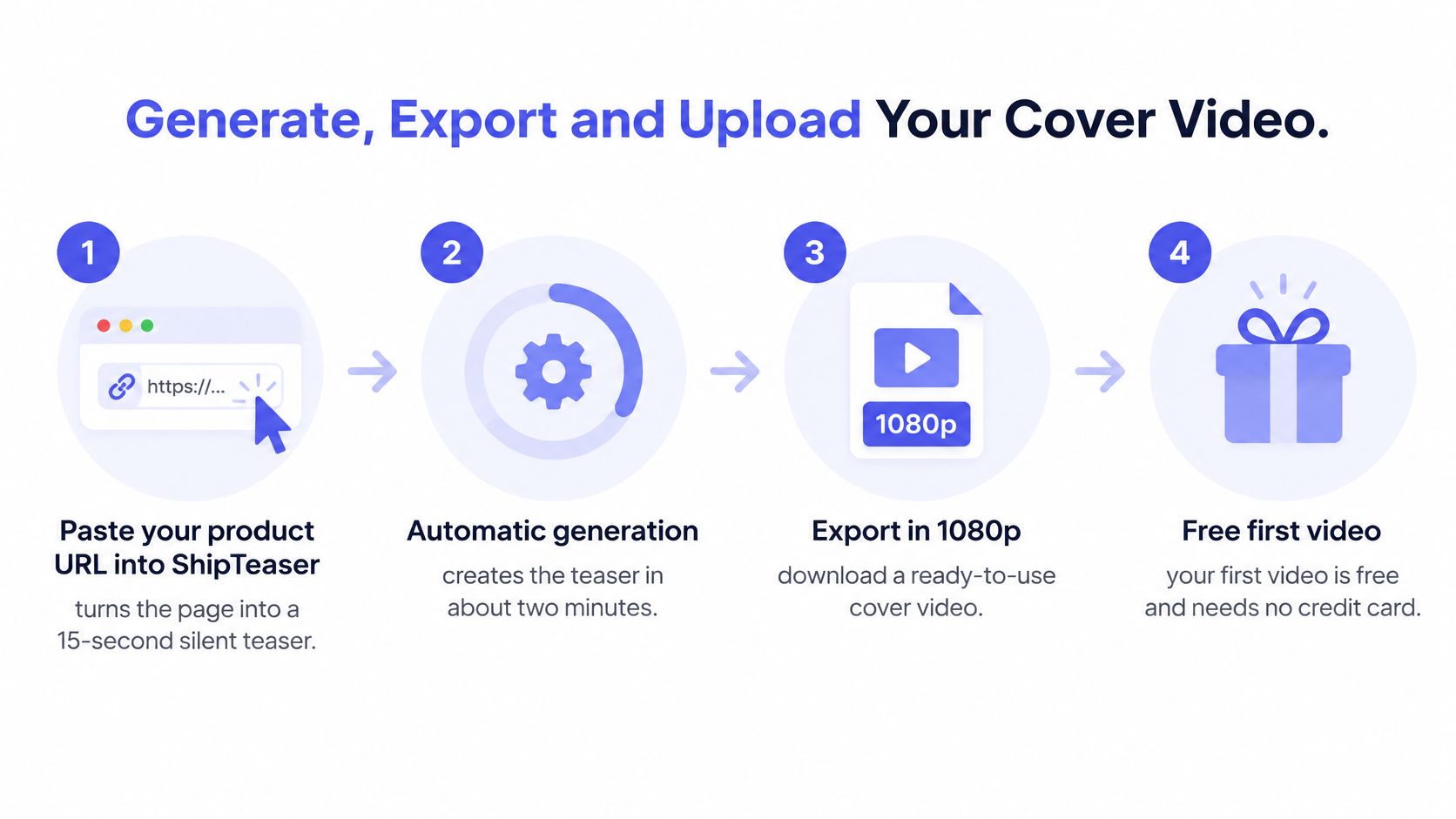
Start by pasting your product URL into ShipTeaser. The tool turns a pasted product URL into a 30-second, 1080p, silent motion-graphics MP4 in about 2 minutes, built from the page's own headline, colour palette, and real screenshots. Your first video is free, with no account and no card, so you can run the whole workflow on a live page before paying anything.
At 30 seconds the file also clears the roughly 20-second floor Facebook has historically applied to cover videos, so a length rejection is one less thing to troubleshoot on upload day.
The visual flow below shows the four main stages before you begin checking crops.
Review every frame before downloading anything for publication. Generated videos may contain factual errors or misread the brand, so check names, claims, screenshots, and colours yourself. Every line of copy in a ShipTeaser video comes from the page you paste, word for word or clearly derived from that page, and ShipTeaser never writes copy for you.
Follow the seven upload steps
- Confirm rights: Check that you own or have cleared every screenshot, logo, and line of copy on the source page, because Meta's original content and ownership guidance prohibits material that violates another party's copyright or trademark. The right to publish the video rests on your rights in that page material, and fast generation does not transfer ownership of anything.
- Download the master: Export the 1080p MP4 and play the full file locally. The result is a clean master that opens without errors.
- Check the safe zone: Confirm the logo, product interface, and headline sit near the centre. The result is a frame where nothing that matters touches an edge.
- Cut feed versions separately: If you want square or vertical cuts for feed placements, crop them from the master in your own editor, since ShipTeaser exports a single 1080p file. The result is one message prepared for multiple Facebook surfaces without rebuilding the cut.
- Re-run the muted phone test: Play the exported MP4 on a phone with the sound off, the same check you ran on the preview. The result should be a clear product claim within the first seconds.
- Upload to the Page: Add the video file to the cover video slot and save. The result is a live header you can inspect in context, with profile elements and buttons visible.
- Reload everywhere: View the Page on desktop and mobile, logged in and logged out. Note whether the video autoplays or appears as a still.
The ShipTeaser AI teaser video maker is the entry point for this URL-based workflow. If a later placement needs a different format, treat the downloaded MP4 as your master and cut everything else from it.
For broader Page management after upload, the practical habits that grow Facebook and Instagram followers still matter, including consistent posting and checking how each surface presents your content. A strong cover can't compensate for an inactive Page.
Use the final checklist
- Copy checked: Product name, headline, and claims match your live page.
- Brand checked: Logo, colours, and screenshots are correct.
- Rights cleared: You hold the rights to the page material the video is built from.
- Crop checked: Logo, product screen, and headline stay central at desktop and mobile widths.
- Sound checked: The muted version explains the product without narration.
- File saved: The 1080p MP4, plus any feed crops you cut, are named clearly.
- Playback checked: Desktop, mobile, logged-in, and logged-out views are recorded.
- Review scheduled: Set a two-week date to compare video against your static cover.
Don't treat upload day as the decision. Give the cover two weeks, record what visitors see on a phone, then keep, replace, or retire the video based on that evidence.
Test the Crop, Then Choose Video or Static
The most common failure is simple: the video looks right on desktop and loses its subject on a phone. Edges that feel safe on a wide monitor can vanish in a mobile crop. Your first frame can also become the whole experience if autoplay doesn't trigger.
The comparison below shows why one preview is not enough.
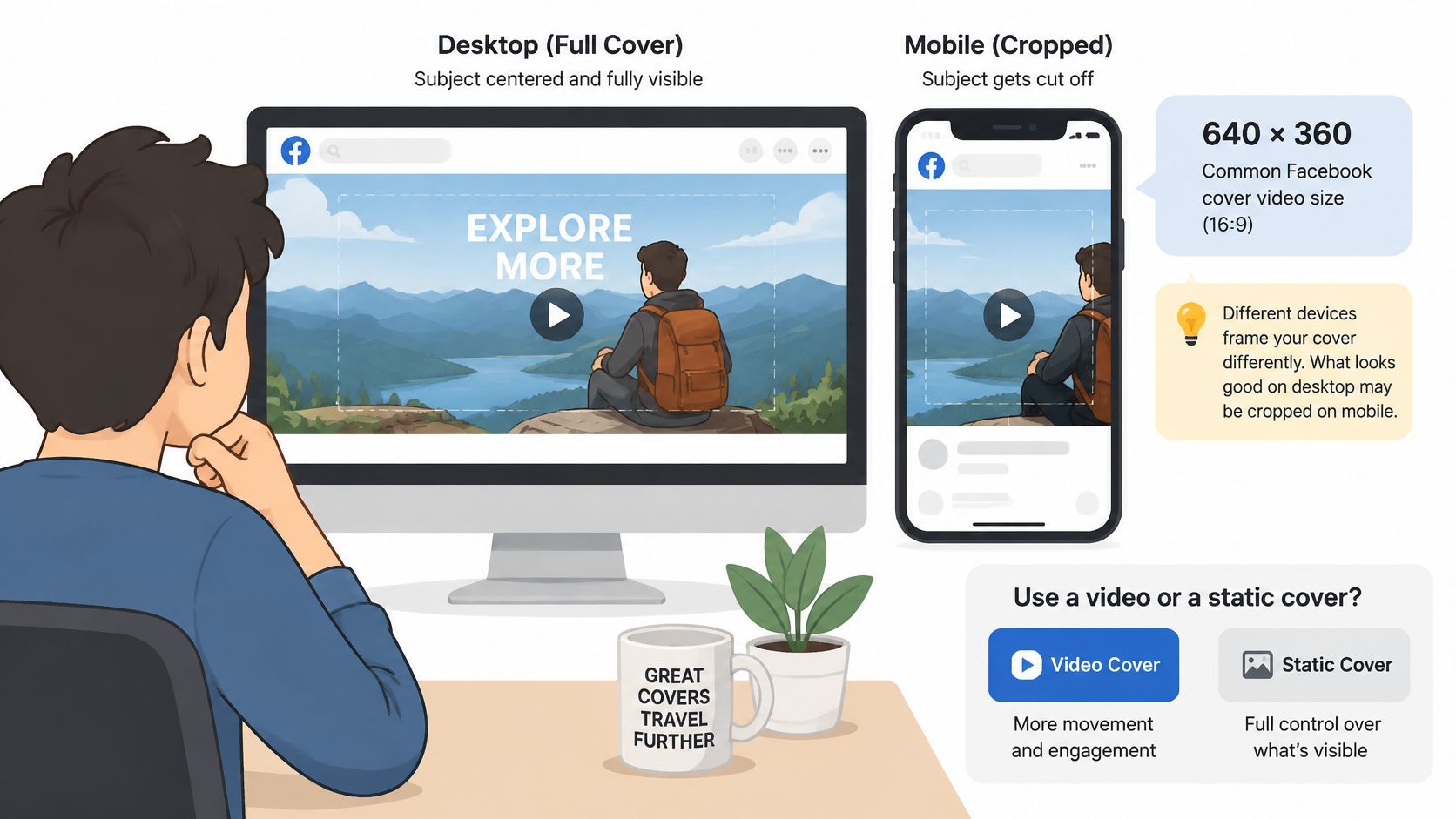
A guide to Facebook video format and size notes that cover videos may not autoplay on mobile and can instead appear as a thumbnail. Plan for the cropped still before the motion: hold the logo, headline and product shot inside a central safe area, preview at both device widths, and give the header one clear job.
| Symptom | Likely cause | Fix |
|---|---|---|
| Logo or headline cut off on a phone | Essential elements sit near the crop edge | Move them into the centre and recheck at about 640 x 360 |
| Video shows as a still thumbnail | Autoplay did not trigger on mobile | Make the first frame a strong still that works alone |
| Product screens look blurry | Source page captured at low resolution | Use a page with sharp screenshots and regenerate at 1080p |
| Upload rejected for length | The clip falls outside the range your Page currently accepts | Check current Page settings and keep the static cover live until the upload is accepted |
| Video looks weaker than the static cover | Motion adds nothing to the core message | Keep the static cover and post the video as a Reel |
When preparing separate feed versions, guidance to create square crops for social media can help you think through framing before you export another ratio. The cover decision still comes first: a cleaner feed crop cannot rescue a weak Page header.
A technically valid video can still be the wrong cover if mobile visitors only see a cropped still.
I would choose video when the clip explains the product faster than a still image or carries a launch message that rotates every few weeks. I would choose a static cover plus a separate Reel when phones show only a thumbnail, the first frame looks cluttered, or motion adds no information.
Run each option for two weeks and compare profile visits and link clicks side by side. Keep the version that produces clearer behaviour in your two-week data.
Common Questions About FB Cover Video Specs and Rights
Will Facebook accept a 30-second cover video
ShipTeaser outputs a fixed 30-second 1080p MP4, which already sits inside the 20-to-90-second range listed in the specs table earlier, so length alone should not block the upload. Page rules do change, so confirm the current settings on your Page before swapping the cover. If the upload is rejected anyway, keep the static cover live until you know why rather than padding the video with empty frames.
Does an FB cover video need sound
Cover videos autoplay muted, and visitors often see the header before enabling audio, so the message has to survive silence. ShipTeaser's output is built for that condition: silent motion graphics with no voice-over, where every line of on-screen copy comes from the page you submitted. Read the generated copy once before publishing, since the engine can occasionally misread the brand, and check that the product claim and call to action still land without sound.
Which size should I export for Facebook
For a Page cover, the file ShipTeaser gives you is the one to use: a 1080p MP4 in horizontal format, with no export settings to configure. Square or vertical versions for feed posts are a separate job, so create those crops only after the cover itself is working. Whatever you produce, keep the logo, product screens and offer text inside the central safe area so phones do not crop them off.
Can I use screenshots from another company's site
Only with permission. The right to publish a generated video depends on your rights in the page material and assets behind it, and copyright and trademark rules apply to a Page cover just as they do to posts and ads. ShipTeaser's URL workflow is built for pages you own: paste your own product page, and the headline, colour palette and screenshots the engine pulls are already yours to reuse.
Paste your product URL into ShipTeaser and generate a silent, 30-second teaser you can test against your current Page cover today. Check the output muted on a phone, confirm the central crop, and keep the static cover if motion does not earn its place.