The usual advice for choosing explainer video software starts with animation styles and template counts. That's the wrong starting point for a founder launching software: choose for the moment someone will watch, whether that's a muted feed, a launch announcement, or a product page.
ShipTeaser is my recommendation for founders who need a short, silent launch teaser from an existing product URL without learning an editor. Choose a screen-capture editor for detailed UI demonstrations, a template animation builder for a custom-script explainer, or a freelance studio when bespoke production matters more than speed. The best explainer video software matches the viewer's next decision, not the longest feature list.
Which Explainer Video Software Fits Your Launch
Choose software by the job the video needs to do. A launch teaser, a product walkthrough, and a brand film require different levels of control.
| Category | Best for | Editing control | Time to first video |
|---|---|---|---|
| Template animation builder | Full product explainers with a custom script | High, scene by scene | After scripting, scene assembly, and export |
| Screen-capture editor | UI walkthroughs and feature demos | Frame-level control | After recording, editing, and export |
| URL-to-teaser generator | 30-second launch videos from a landing page | Steered by a short brief and revision instructions | About 2 minutes |
| Freelance studio | Brand films and high-polish spots | Full, through the studio | Set by the agreed production schedule |
Choose a template animation builder when you need a custom script and control over how each scene develops. It gives you room to explain a longer argument, but you'll handle the script, pacing, and scene arrangement.
Choose a screen-capture editor when prospects need to see the actual workflow. Readable interface details and precise cuts matter more than getting a finished asset quickly.
Choose less control when you need less production
ShipTeaser reads the product page you paste and creates a 30-second, 1080p MP4 in about two minutes. No editor, prompt, or voice-over is required. The silent motion-graphics video uses five beat-cut scenes: hook, problem, solution, proof, and call to action. Its copy comes from the page, word for word or clearly derived from it, and it ends with your own call to action.
You can steer the result with a short brief and natural-language revision instructions. Choose a different format when the launch depends on showing a precise product interaction; a URL-based teaser is built for promotion, not a detailed walkthrough.
A freelance studio fits an original visual concept, bespoke animation, or a brand film with a formal production process. Agree on deliverables and revision scope before production begins.
For context on planning a bespoke production, read Studio Liddell's animated explainer video guide. If the priority is matching launch assets to your existing product, see our guide to making on-brand video without a designer.
Buying rule: Pay for editing control only when you know what you need to control.
A feature announcement may need a concise promotional video. A complicated setup flow needs a walkthrough that shows the steps. Match the software to the viewer's decision and the launch slot, not the animation style.
Output Formats and Aspect Ratios That Matter
The right export is the one that fits the launch placement without losing the product or the message. Check the destination's requirements before choosing software, then inspect how each format handles the headline, screenshots, and call to action.
| Aspect ratio | Pixel size | Placement |
|---|---|---|
| 16:9 | 1920 x 1080 | In-stream video |
| 1:1 | 1080 x 1080 | Square placements |
| 9:16 | 1080 x 1920 | Full-screen Stories and Reels |
Metadata's placement specifications list 16:9 at 1920 x 1080 for in-stream video, 1:1 at 1080 x 1080 for square placements, and 9:16 at 1080 x 1920 for full-screen Stories and Reels.
These dimensions are not interchangeable export labels. A wide layout can place product imagery beside a headline; a vertical layout usually stacks them. Cropping one into the other can cut off product detail or the CTA. Check whether a tool creates a composition for each ratio or just crops the original.
Run these checks before buying
- Composition: Review headline wrapping, screenshot scale, and CTA placement in the format you plan to publish. Cropping alone may leave important content out.
- Downloadable file: Confirm that you receive a downloadable 1080p MP4, not only a hosted preview.
- Length: Make sure the video fits the destination as delivered. If you need to trim it elsewhere, count that extra step as part of the workflow.
File format matters too. MP4 names the container, not every detail of how a video is encoded. For a concise explanation, read video containers and codecs explained. Use this launch video specifications checklist to keep placement requirements in view.
Before scheduling, upload the file to the destination and inspect its preview. Check that interface overlays do not cover the CTA and that the headline and product imagery remain clear at phone size.
Choose the format for your first publishing slot, then review that export before producing others. A video destined for a launch page has different layout needs from one designed for a full-screen feed.
Why Silent Viewing Decides Your Choice
A video that needs sound to make sense loses viewers in a muted feed. The Financial Narrative report says 75% of mobile users reportedly watch video on mute. That makes silent comprehension part of the format decision, not a finishing touch.
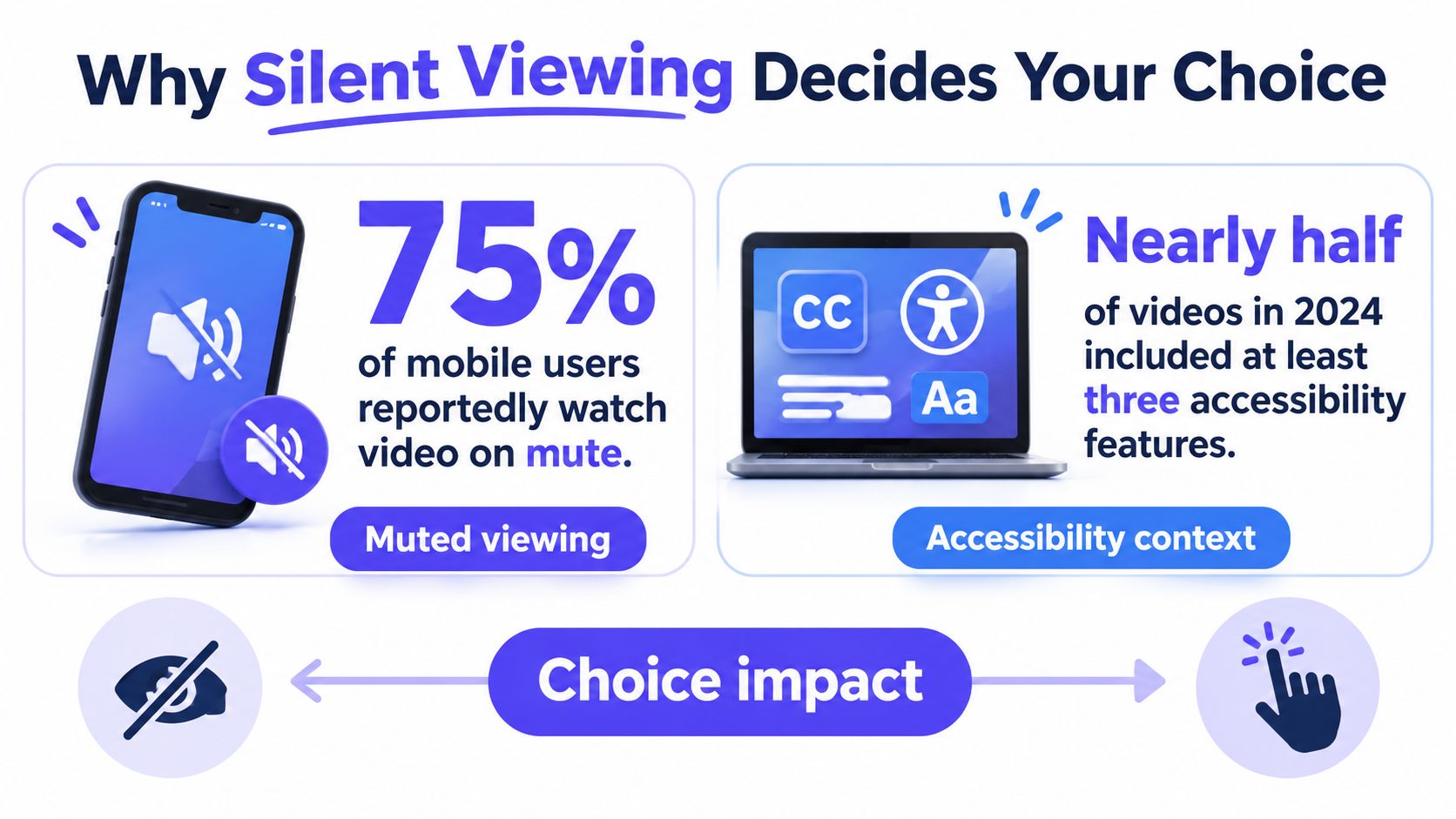
A feed viewer should understand the product without turning on sound. If the point depends on spoken context, the opening isn't doing its job.
Run a five-minute muted test
Watch each candidate on a phone-sized screen with sound off. After the first three seconds, ask someone unfamiliar with the product what it does. At the end, ask what action the video is asking them to take.
- Caption accuracy: For narrated videos, check product names, technical terms, and timing. Review automatic captions before publishing.
- Readable contrast: Keep text legible over screenshots, gradients, and moving backgrounds.
- Controlled motion: Hold copy on screen long enough to read. Movement should support the explanation, not obscure it.
- Accessible playback: Check keyboard access and motion controls in the player you plan to use. Consider whether essential visual information needs audio description.
ShipTeaser videos use silent motion graphics made from the customer's brand. They contain no voice-over, stock footage, or avatars. The copy comes from the product page, so the viewer can follow the message with the sound off.
On-screen promotional copy and subtitles serve different purposes. Promotional copy presents the message visually; subtitles represent speech. For a narrated format, Saturalabs' a guide to subtitling video offers a practical starting point.
Choose software that preserves the explanation without sound, not software that adds the most animation.
The muted test won't establish complete accessibility. It will show whether the video communicates before the viewer has any reason to listen.
Choosing Between a 15-Second Teaser and a Full Demo
Choose by the launch moment. A short teaser suits a launch-gallery slot, a social announcement, or a weekly feature update. A full demo suits visitors who already want to understand how the product works.
Video is an established marketing format: Wyzowl's survey data reports that 95% of video marketers considered video an important part of their marketing strategy in 2025. That doesn't mean every founder needs the same kind of video, or that a longer explanation is automatically more useful.
A teaser sells the next click. A demo sells the decision after it.
A teaser needs an immediately understandable hook, a specific benefit, and a reason to continue. A demo needs enough procedural detail for someone to judge whether the product fits their workflow.
Match the asset to the viewer's question
Say you're shipping an export feature this week. Your followers don't need a tour of every settings panel; they need to know what changed and why the change matters. A repeatable teaser gives you a focused release asset rather than another unfinished production project.
Now say trial users keep getting stuck connecting a data source. Those users need a demonstration of the actual sequence, including what to select and what successful setup looks like. Choose screen capture and show the workflow clearly.
Our URL-based process takes about two minutes from pasting the link to receiving a downloadable 1080p MP4. That turnaround suits quick launch communication, not the deliberate recording and instruction a detailed demo requires.
The common failure is trying to make one asset do both jobs. A teaser padded with onboarding detail loses focus, while a demo stripped down to promotional claims leaves interested visitors without answers. Our product demo video versus teaser comparison helps separate those jobs before production.
Use a teaser when the message fits hook, problem, solution, proof, and call to action. Choose a demo when understanding depends on a step-by-step sequence.
Don't stretch the teaser because you have more material. Save implementation details for the page or demonstration the viewer reaches next, and make that destination match the promise in the launch post.
What Each Option Costs per Launch Video
Compare the monthly quota with the videos you can publish. ShipTeaser's plans work out as follows:
| Plan | Monthly price | Videos per month | Cost per video |
|---|---|---|---|
| Starter | $99 | 4 | $24.75 |
| Growth | $199 | 8 | $24.88 |
| Studio | $299 | 16 | About $18.69 |
The per-video figures divide each plan's monthly price by its included videos. They assume you use the full quota; unused videos raise the effective cost of each asset you publish. See the product video cost guide for a broader way to budget production spending.
The first video is free, with no account, card, or brief required, and is ready in about five minutes. Review the output before choosing a paid cadence. On paid plans, each video includes three revisions and a view counter; all plans can be canceled at any time. Growth and Studio videos carry the brand saved in your dashboard.
For other production methods, calculate total spending divided by usable, published assets. Compare like with like: include revisions, alternate formats, and any source files in the quoted cost. Track your time separately, including preparation, review, revision requests, and replacement renders if a video misreads your brand.
Cost discipline: A low-cost video left in drafts has not saved you production money.
Choose a plan based on the number of launch assets you can review and distribute, not just the lowest per-video figure. Studio has the lowest cost per included video, but that advantage disappears if you leave much of its quota unused. A smaller, consistently published cadence beats a larger quota without a clear audience, destination, and call to action for each video.
Run a Two-Week Test, Then Pick and Post
A polished preview can hide a slow workflow or a weak launch message. Compare tools using one product page, one claim, and the destinations where you intend to publish.
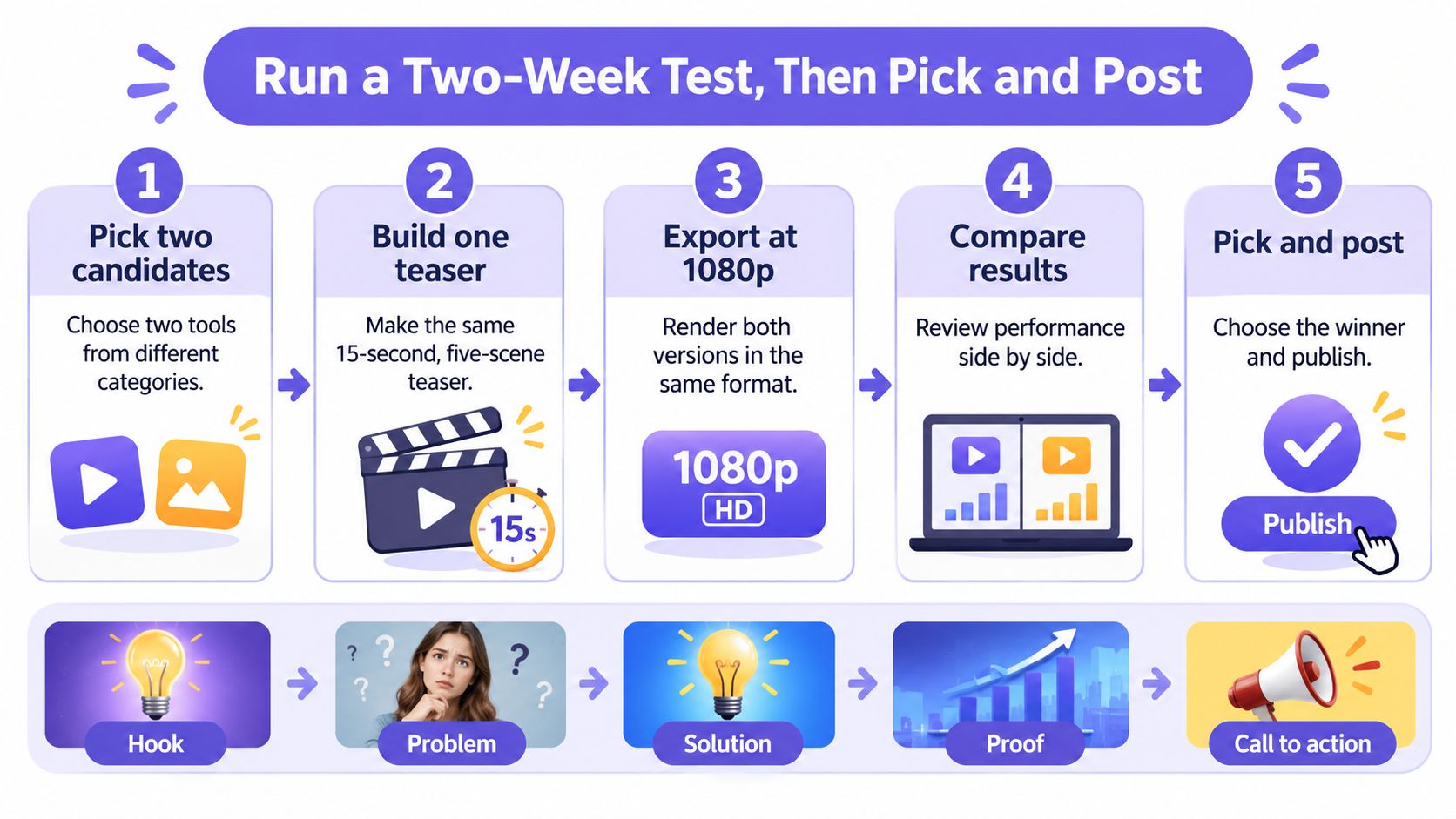
Keep the comparison practical
Choose two production approaches and make the same 15-second, five-scene teaser from one product page. Give both the same hook, problem, solution, proof, and call to action. That keeps the message constant while you compare the workflows.
Export at 1080p in 16:9 and 9:16. Match frame rates where the tools allow it, then check whether each composition works in both formats. Record any extra editing needed to make an export publishable.
Time each process from submission to downloadable file across three runs, then use the median. Include page analysis and asset preparation, not only rendering. ShipTeaser takes about two minutes from pasting a URL to downloading a 1080p MP4; record your own results and failed attempts.
Use the muted test from the silent-viewing section. Score each candidate on message clarity, whether the CTA is specific, and whether the video fits the intended launch placement. Avoid scoring animation polish as a substitute for those outcomes.
Review every video for factual errors and brand misreads before posting. ShipTeaser lets you steer a result with a short brief and natural-language revision instructions. Those controls help refine the video, but they do not replace review.
Publish both versions to the same channel in comparable time windows over two weeks. Keep accompanying copy and destination consistent where practical. Treat organic results as directional because audience and distribution can differ between posts.
Measure play rate, CTA clicks, and landing-page signups. Use identifiable campaign links and decide in advance which action counts as qualified interest. A casual click and a relevant signup are different outcomes.
Decide from qualified interest
The SaaS explainer production guide recommends tracking plays, completion, CTA clicks, qualified actions, and page conversion rather than treating broad conversion benchmarks as a forecast. Separate intentional plays from autoplay exposure where reporting allows it.
Choose the workflow that produces more qualified clicks and that your team can sustain through production, review, and posting. Small samples point to a direction, not a winner. Repeat the comparison before making a larger commitment.
Start with one product page and a defined CTA. Publish the comparison, then use the results to choose your workflow.
Explainer Video Software Questions Founders Ask
What explainer video software fits a solo founder's launch?
Choose software based on what the viewer needs to understand. For a brief announcement, a URL-based teaser can turn your product page into a ready-to-post video without manual editing.
Can a silent teaser replace a product demo?
A teaser introduces a benefit and gives viewers a reason to click. Use a demo when buyers need to see how a workflow works.
Do silent videos need subtitles?
There is no narration to transcribe, but on-screen copy still needs review. Check contrast, reading time, and whether important visual information has an accessible alternative.
What should I check before publishing a generated launch video?
Review every claim, screenshot, brand detail, and call to action. Generated videos can misread a page or contain factual errors, so check the finished video before publishing. Confirm that the file plays correctly and that the destination page supports the promise in the video.
ShipTeaser reads your product page and creates a 30-second, silent 1080p MP4 in about two minutes. Your first video is free, with no account, card, or brief needed, and is ready in about five minutes. Review it before publishing, then use your own call to action to send viewers to the next step.