You're probably doing what most builders do. You need a fast birthday asset for a cofounder, early user, or launch supporter, and you don't want to send a limp static image that looks copied from a chat pack. A custom birthday GIF works when it behaves like a tiny product asset, not a craft project.
A custom birthday GIF that stands out has three jobs. It grabs attention in the first frame, lands one personal detail that only this recipient would care about, and closes with a clean punchline or reaction cue. Keep it short, silent, and built for the channel where it will be seen.
What a Custom Birthday GIF Actually Is
You are not sending a greeting card. You are shipping a tiny branded asset with one job. Get attention fast, prove you know the recipient, and leave a clean reaction loop people want to replay or share.
A custom birthday gif is a short looping animation built for one person and one context. It carries the same discipline as a launch asset. Strong first frame, one obvious proof point, and a close that resolves the loop instead of letting it die awkwardly.
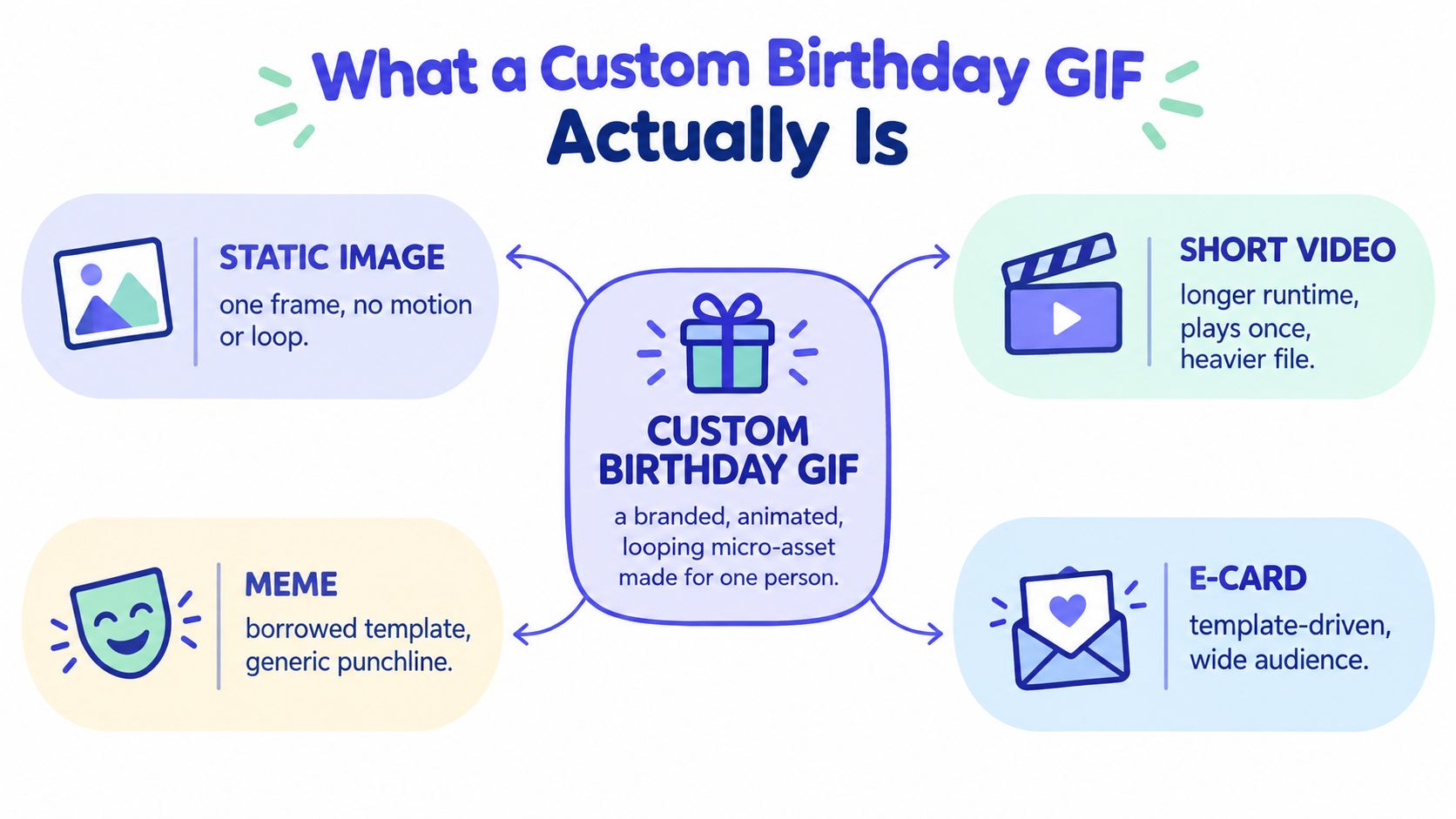
The format itself goes back to the late 1980s, when animation timing and transparency made repeatable loops practical. That matters because the best birthday GIFs still follow the same discipline. A loop has to hook on frame one, deliver proof in the middle, and close in a way that makes the restart feel intentional.
The structure to use every time
Every effective custom birthday gif has three parts.
- Hook frame: Win the first glance with a face, name card, color hit, or obvious motion cue.
- Proof frame: Show the personal detail. Use the nickname, shared joke, photo, or callback line only this recipient will get.
- Closing cue: End on a punchline, reaction face, or simple birthday sign-off that makes the loop feel complete.
One clear idea beats five cute ideas jammed together.
What separates a real custom GIF from a dressed-up image
The asset has to move with purpose. Decorative sparkles, random stickers, and long scene changes weaken the point. So does cramming a full birthday video into a GIF slot.
Use motion to direct attention, not to show off editing. The recipient should understand the joke or message with the sound off, at small size, in under two seconds. If you are building from clips instead of single images, this related video montage maker article helps frame the difference between a compact loop and a longer sequence.
What matters more than sharpness
Builders often overfocus on resolution and underfocus on loop behavior. Quality bar is simple. The first frame reads instantly, the motion does not stutter, and the reset feels clean enough to replay.
If you want motion references before you build, the Bulk Image Generation animation guide is useful for spotting animation patterns that hold up and ones that fall apart once compressed.
Source Material and Inputs That Make the GIF Sing
You would not launch a product with sloppy screenshots, half-written copy, and random brand colors. Treat a custom birthday GIF the same way. It is a branded micro-asset. If the inputs are weak, the output looks cheap, no matter how clever the animation is.
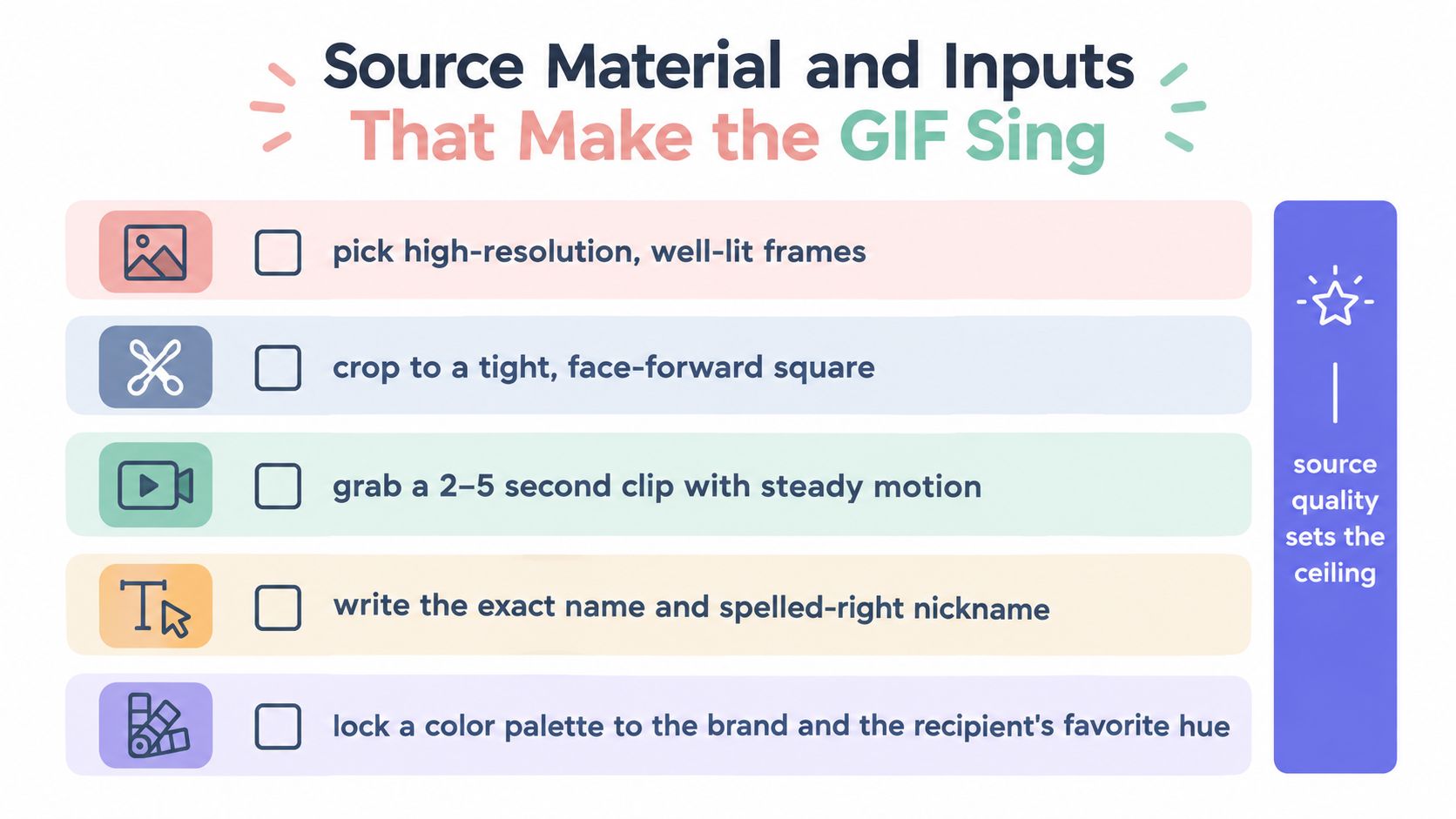
Start with assets that can carry the message before motion does any work. A good birthday GIF already has a hook in the first frame, proof that it is personal, and a clear finish. That means the source photo, clip, and copy each need a specific job.
Pick source assets with a job to do
Use photos with one obvious subject, clean lighting, and framing that still reads on a phone screen. Tight shots win. Group photos usually lose because the recipient becomes a tiny detail inside visual clutter.
For clips, pick a moment with visible action. A laugh, candle blow, wave, side-eye, or exaggerated reaction works. Small motions disappear after compression, so skip subtle footage that only works at full size.
Your best raw materials usually fall into four buckets:
- Still photos: Close portraits, candid reactions, or one shared memory with a clear focal point
- Short clips: A visual beat that makes sense with the sound off
- Text copy: The exact name, nickname, callback, or punchline, spelled correctly
- Visual direction: One color system and one type style that fit the person or the brand behind the send
That last point matters more than people think. If you are a founder sending birthday GIFs to customers, creators, or teammates, the asset should still feel like it came from your company. Personal does not mean visually chaotic.
Build the input pack before you open the editor
Editing should be assembly, not decision-making. Decide the ingredients first, then build fast.
Use this checklist:
- Collect the candidates: Put every usable photo and clip in one folder
- Kill weak options early: If a file is blurry, badly cropped, or emotionally flat, cut it
- Lock the line: Finalize the exact text before design starts
- Choose the destination: Decide whether this GIF lives in chat, email, a landing page, or social
- Confirm permission: If someone's face is the centerpiece, make sure they would want it used
One sentence matters here. Source quality sets the ceiling.
Match the input to the channel
The destination should shape the source choice. A chat GIF can survive with one strong face and one sharp joke. An embedded GIF on a launch page needs cleaner composition, because it has to read as part of a branded experience.
Browser-based editors usually follow the same basic workflow. Upload the photo or short clip, set the length, choose the aspect ratio, add text, then export. The smart move is deciding the channel before any of that starts, because the crop and framing rules change the second you move from square chat placement to vertical story placement.
If you want the same input discipline used for launch assets, this URL to video workflow for turning a page into a reusable visual asset is the right mental model. Strong inputs cut build time and produce cleaner outputs.
Choosing the Right Tool for the Job
If the only usable photo is sitting in your camera roll at 11 p.m. and the birthday message needs to go out before midnight, your tool choice is already decided. Use the tool that gets you from raw asset to clean loop fast, with text control and a predictable export.
Treat this GIF like a tiny launch asset, not a greeting card craft project. It needs a hook in the first beat, one clear emotional or funny payoff, and a clean finish. The wrong tool slows that down by adding options you do not need.
Start with the bottleneck.
A mobile-first loop maker fits phone-native inputs and fast turnaround. A browser-based design editor fits branded text, layout control, and repeatable variations. An AI motion generator or static-to-motion converter fits the case where you only have one strong still and need movement to create energy.
The best default for a custom birthday GIF is usually the browser-based category. It gives you enough control to handle the three things that matter: readable text, clean composition, and quick versioning for different placements. That is the same discipline good builders use for launch creative. Build one strong concept, then adapt it without rebuilding the whole asset.
Skip heavyweight workflows. If the tool pushes you into timeline editing, manual keyframes, or a long render cycle for a six-second birthday loop, it is the wrong tool.
Pick the category by job, not by novelty
| Tool Category | Best Use Case | Main Advantage | Common Failure |
|---|---|---|---|
| Mobile-first loop maker | A photo or short clip already lives on your phone | Fast build and fast send | Weak text placement and limited brand control |
| Browser-based design editor | You want a polished GIF with names, colors, and reusable layouts | Best balance of speed and control | Free exports often add limits or watermarks |
| AI motion generator | One strong still needs motion to carry the idea | Adds movement without filming new footage | Effects can feel gimmicky fast |
| Static-to-motion converter | Tight deadline, portrait-led gift, minimal editing time | Quick animation from a single image | Limited control over pacing and hierarchy |
Here is the rule I use: if the joke or sentiment depends on words landing cleanly, choose the browser editor. If the face does all the work, mobile is fine. If motion is the whole point, use AI sparingly and keep the effect short.
Founders already making launch assets should keep the structure simple. Open with the person. Add the birthday line. Close on a branded sign-off or inside joke. Three beats. That is enough.
If you want the same scene discipline used for compact launch creative, this AI teaser video maker workflow for fast branded sequences is the right model. The lesson applies directly to birthday GIFs. Small asset, clear sequence, no wasted motion.
Export Settings That Survive Every Channel
You finish a sharp birthday GIF at 11:40 p.m. The hook lands, the face reads, the sign-off is on brand. Then the send kills it. Text gets blurred in email, the crop breaks in Stories, and the file drags in chat because you exported one version and hoped every channel would tolerate it.
Treat export like distribution for a launch asset. Same creative concept. Multiple channel-specific cuts.
Four settings decide whether your GIF survives: dimensions, frame rate, color count, and file size. Get those right and the asset keeps its punch. Get them wrong and even a strong idea looks sloppy.
Start with the destination
Do not export first and force-fit later. Build the master, then output versions for the channels that matter.
A birthday GIF is a branded micro-asset. It still needs the same discipline as a launch teaser. Clear focal point. Readable text. Safe crop. Fast load. If you know the GIF will live in DMs, email, and a social story, export for each one on purpose instead of asking one file to do three jobs badly.
Birthday GIF Export Targets by Channel
| Channel | Recommended Dimensions | Max File Size | Aspect Ratio |
|---|---|---|---|
| 480 to 720px wide | Keep it lightweight for reliable sending | Match the composition | |
| Instagram DMs and Stories | 1080 x 1920 | Keep it lightweight for reliable upload | 9:16 |
| 600px wide | Keep it lightweight to avoid clipping and slow load | Usually horizontal or square | |
| iMessage | Compact export preferred | Keep it lightweight for older devices | Square or portrait |
| Slack message attachment | Match the intended preview shape | Keep it lightweight for quick loading | Square, portrait, or horizontal |
The settings I'd use first
Start with dimensions. Wrong dimensions create bad crops, tiny faces, and text that sits too close to the edge. Those mistakes make the GIF feel cheap fast.
Then tune frame rate. Birthday loops rarely need silky motion. A modest frame rate usually keeps the joke or message intact while cutting file weight enough to make sending easier.
Color count comes next. Confetti storms, glowing gradients, and noisy backgrounds punish GIF compression. If the message matters, simplify the scene before you shrink the asset into mush.
Use this order:
- Set dimensions first: Export in the aspect ratio for the actual channel.
- Adjust frame rate second: Lower it until motion still reads cleanly.
- Reduce color complexity third: Simplify backgrounds, overlays, and effects that add weight without adding meaning.
- Create channel tiers last: Make one export for messaging, one for email, and one for social.
One more rule. Test the send, not just the preview. Drop the file into the channel and check three things: crop, text readability, and load speed. That 30-second check saves the asset.
If your birthday GIF also needs to live beside launch creative, this Instagram video format guide for aspect ratio decisions is the right reference point.
Personalization Levers That Make It Feel Personal
You are not making a greeting card. You are shipping a tiny branded asset to an audience of one.
That changes the standard. A custom birthday gif should have a hook, proof, and a clear emotional payoff. The hook gets attention in the first second. The proof shows this was made for that specific person. The payoff is the laugh, smile, or callback that makes them save it instead of skimming past it.
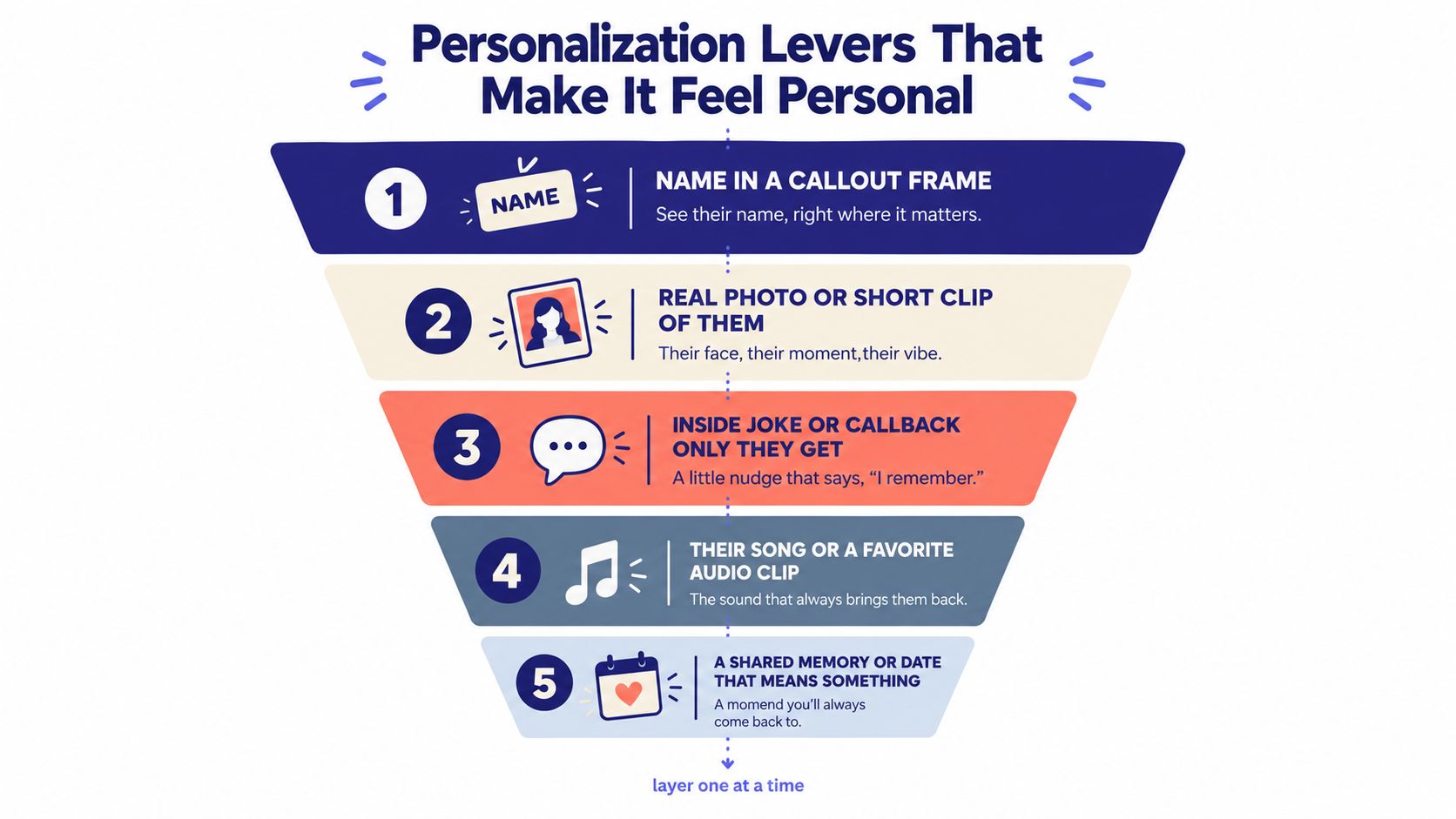
A name alone does not carry that load. It helps, but it is surface-level personalization. Real specificity comes from details that prove proximity. If the gif could be forwarded to five other people with only the name swapped, it is filler.
Use these levers in order of impact:
- Face or voice first: A real photo, reaction shot, or short clip beats decorative motion every time.
- Shared reference second: Pull in a trip, running joke, nickname, old screenshot, or recurring phrase.
- Name third: Put it where it gets seen fast, usually in the opening frame or final beat.
- Sender signature fourth: Add your mark. A recurring phrase, brand color, or sign-off makes the asset feel authored, not autogenerated.
- Specific occasion detail last: Age, city, role, team joke, or a date can sharpen the message if it means something real.
The right combination is simple. Open with “Happy Birthday, Maya.” Cut to the photo everyone in your friend group still laughs about. Close on the line only your circle understands. That sequence works because each frame increases proof.
Weak personalization does the opposite. Confetti. Generic “happy birthday” text. Stock energy. No evidence of relationship. The file may be customized, but it does not feel owned.
Here is the standard I use: include one detail a stranger would not understand, and one asset nobody else would have picked.
That rule keeps you out of the trap of overproducing the wrong thing. Extra transitions, glow effects, and novelty fonts do not create intimacy. Better choices do. One sharp callback is stronger than five layers of decoration.
Industry roundups consistently show birthdays drive the biggest share of personalized orders. That matches what works in practice. People respond to proof of attention. Build your GIF like a launch asset. Lead with the hook, earn the reaction with proof, and make every frame answer one question clearly: why was this made for them?
Consent, Likeness, and the Authenticity Question
You ship the GIF, the birthday person opens it, and instead of laughing they ask, “Where did you get that photo?”
That is a failed launch.
A custom birthday gif is a branded micro-asset. It travels fast, gets forwarded, and can outlive the moment you made it for. If you use someone's face, voice, or private joke, treat that input like product footage. Public access does not equal permission to repurpose.
Where birthday GIFs go wrong
The common mistakes are easy to spot.
- Private photo turned into a shareable asset: A picture from a closed chat or family album should stay there unless the person would clearly welcome wider reuse.
- Portrait animation without context: Mainstream GIF makers now make it easy to animate portraits, which raises etiquette and consent questions fast.
- Scraped social photos with no judgment: Pulling images from someone's feed can read as low-effort, invasive, or both, especially if the shot is old, unflattering, or meant for a different audience.
The standard is simple. If the recipient would need an explanation before they could enjoy it, you chose the wrong source material.
Use a builder's approval filter
Before you export, ask three questions.
Did they share this image with you directly?
Would they be comfortable seeing it forwarded?
Does the animation keep them recognizable in a way they would like?
If you cannot answer yes to all three, change the asset. Do not try to write your way out of a bad creative decision with extra copy.
A short note still helps. “Made this from your race-day photo because it rules.” “Used the team dinner shot because everyone remembers that night.” Clear context makes the GIF feel intentional instead of weird. For collaborative sends, these tips for a personal group card are useful because the same rule applies. Personal beats invasive only when the judgment is good.
Authenticity comes from restraint. Use the photo they would have picked, the joke they would claim, and the version of their likeness that feels true instead of engineered. That is how a birthday GIF feels authored, not extracted.
Troubleshooting Before You Hit Send
You finish the GIF at 11:47 p.m., send it, and wake up to the worst outcome. The face is cropped, the first frame is frozen, and the recipient's name is misspelled. That is not a sweet birthday touch. It is a sloppy launch.
Treat the send like a product release. A custom birthday gif is a tiny branded asset. It still needs a hook that reads instantly, proof that the creative works in the channel, and a delivery check before it goes live.
Check the destination, not just the export
Your editing window is a false comfort. The only preview that matters is the one inside the app where the recipient will see it.
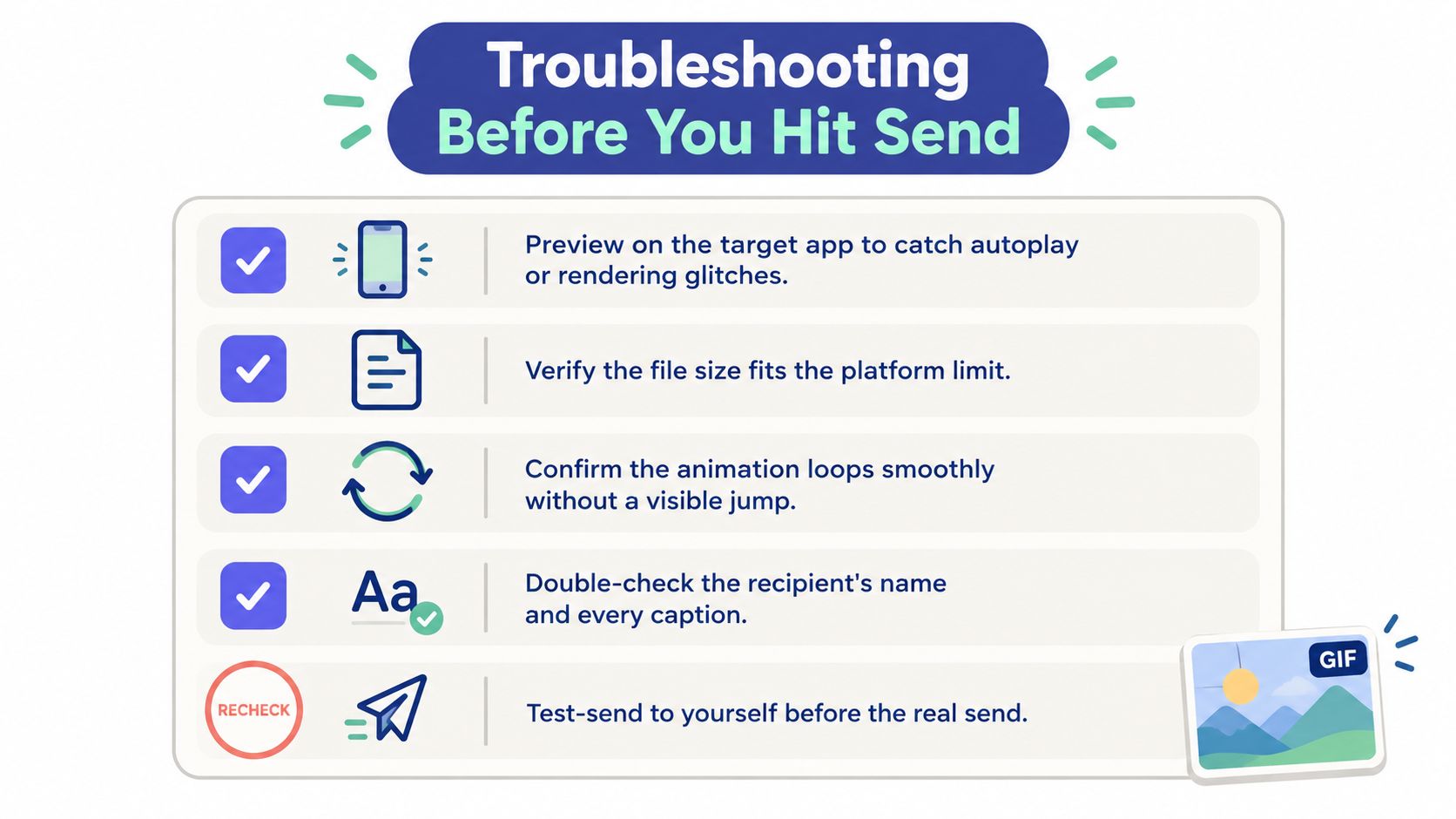
Send it to yourself in the exact channel first. Watch what happens to autoplay, crop, color, and text placement. If the GIF is built for a text thread, test the text thread. If it is built for email, open it in email. One asset rarely survives every surface without adjustment.
Use this pre-flight checklist:
- Target app preview: Test-send it where the recipient will receive it.
- Loop seam: Watch the reset from final frame to first frame three times in a row.
- Name and copy check: Verify spelling, punctuation, and line breaks.
- Safe crop: Make sure the face, cake, or punchline stays visible after app compression.
- Fallback file: Keep a lighter export ready if the main file loads badly.
Fix the failures that matter
Nearly every broken send comes from the same few mistakes. The file is too heavy, the canvas shape is wrong for the channel, or the motion asks too much from the format.
Start with file weight. Cut dead time before you cut clarity. A shorter loop usually improves the asset because the joke lands faster and the repeat feels cleaner.
Then check composition. Do not force one master export into every channel. Rebuild for the destination if you need to. A square loop for a group chat and a vertical cut for a story are not duplicates. They are channel-specific versions of the same micro-asset.
Loop quality is last. If the reset feels jerky, remove frames, simplify motion, or hold on a cleaner end pose. Fancy animation is not the goal. Readability is.
Test-send on Wi-Fi and cellular. If it struggles on mobile data, it will feel broken to the recipient.
Practical questions worth answering before launch
Can I make a custom birthday gif without installing software?
Yes. Browser-based tools are enough for this job. The result depends far more on your source material, crop discipline, and export choices than on advanced features.
What's the ideal length for a birthday GIF?
Keep it short. The message should land on the first pass and feel satisfying on the second. If it starts behaving like a mini video, cut it down.
How do I add someone's name without hurting the loop?
Place the name in a stable area with strong contrast. Keep it away from busy motion and edge crops. If the text animates, make sure it stays readable every time the loop restarts.
Should I send a GIF or a short MP4 instead?
Use a GIF when inline autoplay and instant viewing matter more than image quality. Use a short MP4 when the platform mangles GIFs or when cleaner visuals matter more than pure loop behavior.
Timing matters too. Most personalized gift purchases happen 10 to 18 days before the date, so schedule the send early. Do not build the asset at the last second, especially if this is part of a recurring team ritual or a broader birthday campaign.
If you already think in launch assets, ShipTeaser fits this workflow cleanly. ShipTeaser lets you paste a product URL and get a silent, 15-second, 1080p teaser in about 2 minutes, with five scenes built around hook, problem, solution, proof, and CTA, exported for 16:9, 1:1, and 9:16 posting. Your first video is free with no credit card, and paid plans are $99 per month for 1 video per week, $149 for 2 per week, and $199 for 4 per week. See ShipTeaser if you want the same disciplined micro-asset approach for product launches.