A short runtime does not guarantee a clear launch message. An IAB digital-video case study found that very short spots can struggle to communicate, while longer ones can frustrate viewers waiting for their content. Choose a maker based on how much editing time you have and how much control the product story requires.
For founders with a landing page and little editing time, ShipTeaser turns the page into a 30-second, 1080p video built for silent feeds, with a call to action at the end. Template editors suit founders with footage ready to assemble. Screen recording works for interface-led explanations, while hand-built motion graphics offer more control at the cost of design time.
Which 15 Second Video Maker Type Fits Your Launch
Your maker choice sets the trade-off: fewer editing hours mean less control over how the story is told. A URL-based generator starts from the product page. A screen recording gives you more control over the proof, while hand-built motion graphics give you the most control and demand the most production work.
15 second video maker types compared
| Maker type | Input you provide | Editing needed | Audio | Turnaround | Best for |
|---|---|---|---|---|---|
| URL-to-video generator, such as ShipTeaser | Product URL | None | Silent | About 2 minutes | Solo builders with a landing page |
| Template editor | Your own footage or stock clips | Yes, timeline editing | Voice-over or music | After asset selection, assembly, and export | Founders who already own footage |
| Screen recording demo tool | Live app session | Light trimming | Narration optional | After a clean recording and trim pass | Products where a visible interface is the story |
| Hand-built motion graphics | Brand assets and a script | Yes, frame by frame | Your choice | After storyboard, animation, and review | Founders with design time who want a reusable brand template |
Rank the work before ranking the software
For manual editing hours per video, the typical order runs from URL-to-video first, through screen recording and template editing, to hand-built motion graphics last. That ranking reflects the usual workflow, not a measured hourly benchmark. A difficult recording can take longer than adapting a familiar template.
Count the full production effort: asset preparation, recording attempts, review, and export. Generation time alone won't tell you how much work the video takes.
The 15-second limit also forces different cuts:
- URL-to-video: Trim secondary positioning from the source page. An unfocused promise stays unfocused.
- Screen recording: Remove setup, navigation, loading, and anything before the useful result.
- Template editing: Drop decorative transitions and clips that don't explain the product.
- Hand-built motion graphics: Simplify sequences that use up runtime before viewers understand the benefit.
Choose control only when you'll use it
For a developer utility with a clear headline and product screenshot, building an animation timeline may add work without adding useful evidence. If the app transforms an input into a visible result, a short interface recording can make that benefit easier to understand.
Use this product demo video versus teaser comparison to decide whether viewers need to see an interaction or need a reason to investigate. Those formats serve different purposes.
If you're comparing categories, find an AI video maker by filtering for the input and editing workflow you can sustain.
More control means more decisions per video. Choose it when those decisions improve the explanation. Estimate your weekly video-making time, then rule out any workflow that exceeds it.
Pricing and Cost per Video
ShipTeaser's monthly price is easy to compare with its video allowance. Starter costs $99 per month for 4 videos, or about $25 per video if you use the full allowance. Studio costs $299 per month for 16 videos, or about $19 per video at full use.
| Plan | Price | Videos per month | Approximate cost per video |
|---|---|---|---|
| Starter | $99 per month | 4 | About $25 |
| Studio | $299 per month | 16 | About $19 |
| First video | Free | 1 demo video | Free |
These are capacity-based calculations, not the cost of each video you publish. Use fewer than your allowance and your effective cost per video rises. The first demo video is free, with no account or card required; free demos have no retention guarantee and may be removed at any time.
Choose a plan around actual launch moments, not an idealized posting schedule. Starter covers four videos per month; Studio covers sixteen. The weekly allowance resets on Monday at 00:00 UTC, and unused videos do not carry over, so map your planned videos to calendar weeks before subscribing.
For a broader breakdown of production expenses, see this guide to product video costs. Keep production and distribution budgets separate: a publishing subscription is a different expense from generating the video. If you need to budget publishing tools too, compare Narrareach publishing plans.
Count videos you approve, not just videos generated. Include your time reviewing and revising them when you calculate the total cost.
Why 15 Seconds Holds Attention Better Than Longer Spots
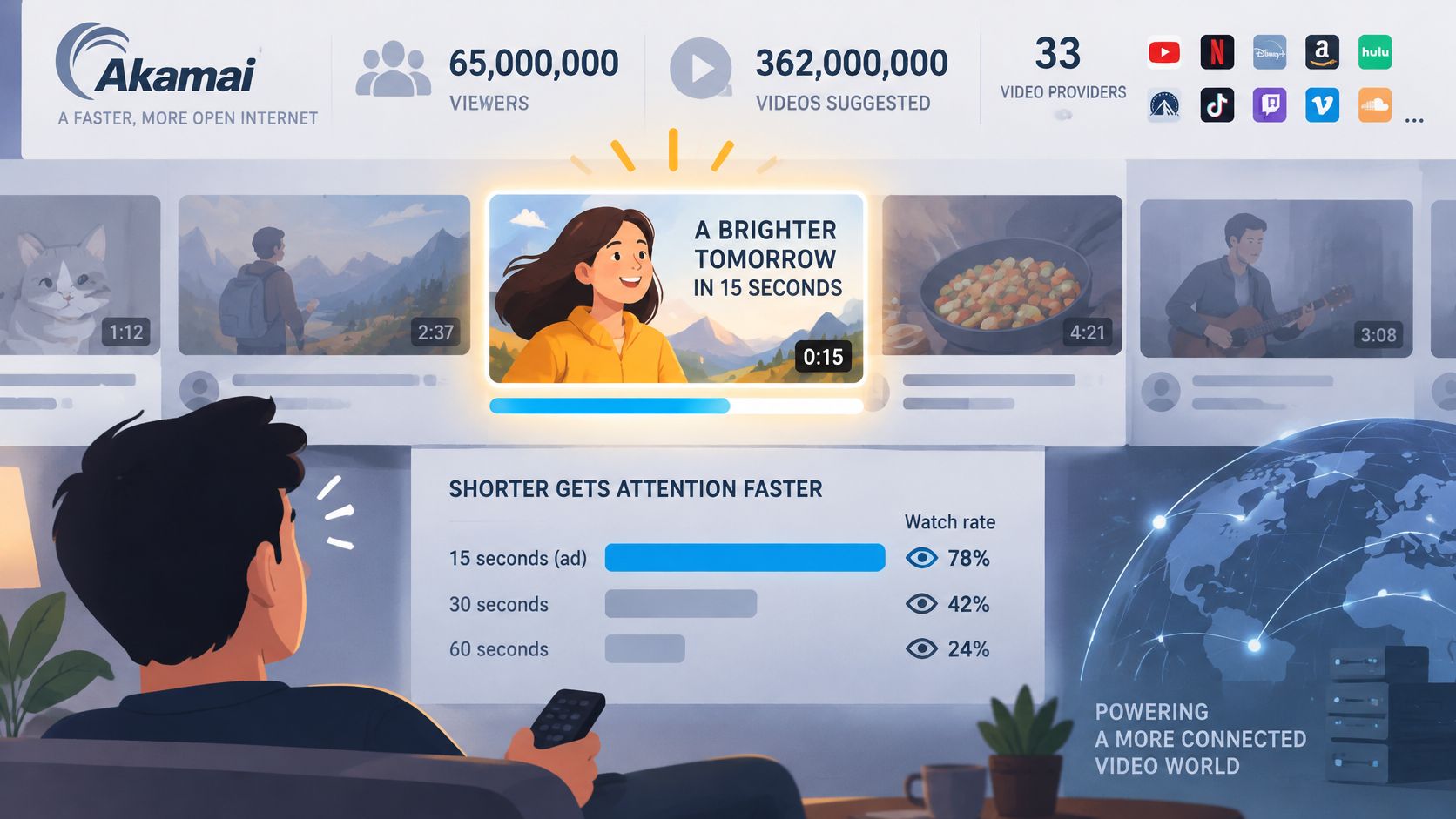
A 2013 peer-reviewed study published through ACM analyzed approximately 65 million unique viewers and 362 million videos delivered through Akamai's network across 33 video providers. The study found that a 15-second advertisement was 2.9% more likely to reach completion than a 20-second advertisement, while a 20-second advertisement was 3.9% more likely to complete than a 30-second advertisement.
The completion advantage makes brevity worth considering, but it doesn't remove the need for a clear message.
Bet on completion, not universal agreement
Those findings concern video advertisements in particular viewing environments. They don't guarantee that your launch teaser will outperform a longer product explanation, and completion doesn't mean comprehension or conversion.
There's a useful counterpoint. In HubSpot's 2024 video-marketing survey, 42% of video marketers identified 21 to 30 seconds as the optimal video length. Choosing a shorter format is therefore a deliberate constraint, not an industry consensus that every product needs the same runtime.
I'd take that constraint for a launch teaser. A teaser should earn the next click, not complete the entire sales conversation.
Editorial rule: Narrow the promise. Don't accelerate the entire landing page until every sentence becomes unreadable.
Cut features before cutting comprehension
A five-scene structure gives you hook, problem, solution, proof, and CTA. Those are narrative functions, not permission to squeeze an independent explanation into every scene.
Say you're launching a planning app. Your promise might be turning scattered release notes into a publishable update. Showing task management, team permissions, analytics, and integrations would introduce competing reasons to care before you've established the first one.
Make separate teasers when separate features need explanation. Keep the proof close to the promise: show the relevant result, not an unrelated dashboard that merely looks substantial.
Use this cut list before generation:
- Keep the outcome: Explain what changes for the user.
- Keep credible evidence: Use a visible capability or supported claim.
- Remove prerequisites: Leave detailed setup instructions for the destination page.
- Remove competing actions: Don't ask viewers to register, read documentation, and follow your account simultaneously.
The decision comes before the maker: write the single promise the video must communicate, then choose a workflow that can demonstrate it.
Output Specs for Landing Pages, Feeds and Product Hunt
ShipTeaser delivers a 30-second, 1080p MP4 with no export settings to configure. Check how that finished file appears in its intended placement before publishing. A video can meet the file specification and still have key text covered by interface controls.
The YouTube aspect-ratio guide identifies 16:9 as standard on computers and explains that the player adapts to vertical and square uploads. That makes a wide video a reasonable fit for a landing-page player, but placement still determines how well the composition works.
Check each placement
| Placement | What to check |
|---|---|
| Landing page or YouTube player | Preview the video in the page layout, including on mobile. YouTube uses 16:9 as its standard computer format and adapts other shapes. |
| Vertical feeds, such as Reels or Shorts | Keep key elements clear of interface overlays. For Reels ads, Uplonic's vertical-video safe-zone guide summarizes guidance to avoid the top 14% and bottom 35%. |
| Square feed posts | Preview the actual placement and check that essential text remains readable and away from the edges. |
| Product Hunt gallery | Upload the MP4 to YouTube, set it to public, then paste its full URL into the gallery. |
Check visibility, not just dimensions
The vertical-video safe-zone guide describes controls covering roughly 200 to 250 pixels at the top and 250 to 380 pixels at the bottom of a 1080×1920 frame. It also summarizes Reels advertising guidance that reserves approximately the top 14%, bottom 35%, and side 6%.
Treat these as placement-specific checks, not universal boundaries. Organic posts and advertising placements can expose different amounts of the composition.
For vertical placements, preview the video with the bottom third covered. If the product name, proof, or closing action disappears, the composition needs another look. Check screenshot details, too. A readable headline won't help if the interface text requires pinching to understand.
- Landing page: Check the video inside the actual page layout, including its mobile layout.
- Vertical feed: Inspect the headline, screenshot detail, and closing action against platform overlays.
- Square post: Look for cramped lines and details that have become too small to read.
- Product Hunt: Upload the MP4 to YouTube, set it to public, and paste the full URL into the gallery.
Validate the final destination
Product Hunt gallery videos are added as YouTube links, not direct MP4 uploads. Test playback in the gallery after adding the link.
Use the launch video specs guide to check the publication requirements. Review the actual video in each placement you intend to use.
Design for Silent Autoplay Before You Add Sound
Build the teaser so it works with the sound off. A scrolling founder will not tap for audio just because your product needs explaining. If the pitch only lands when someone is listening, you have added a condition most feed views never meet.
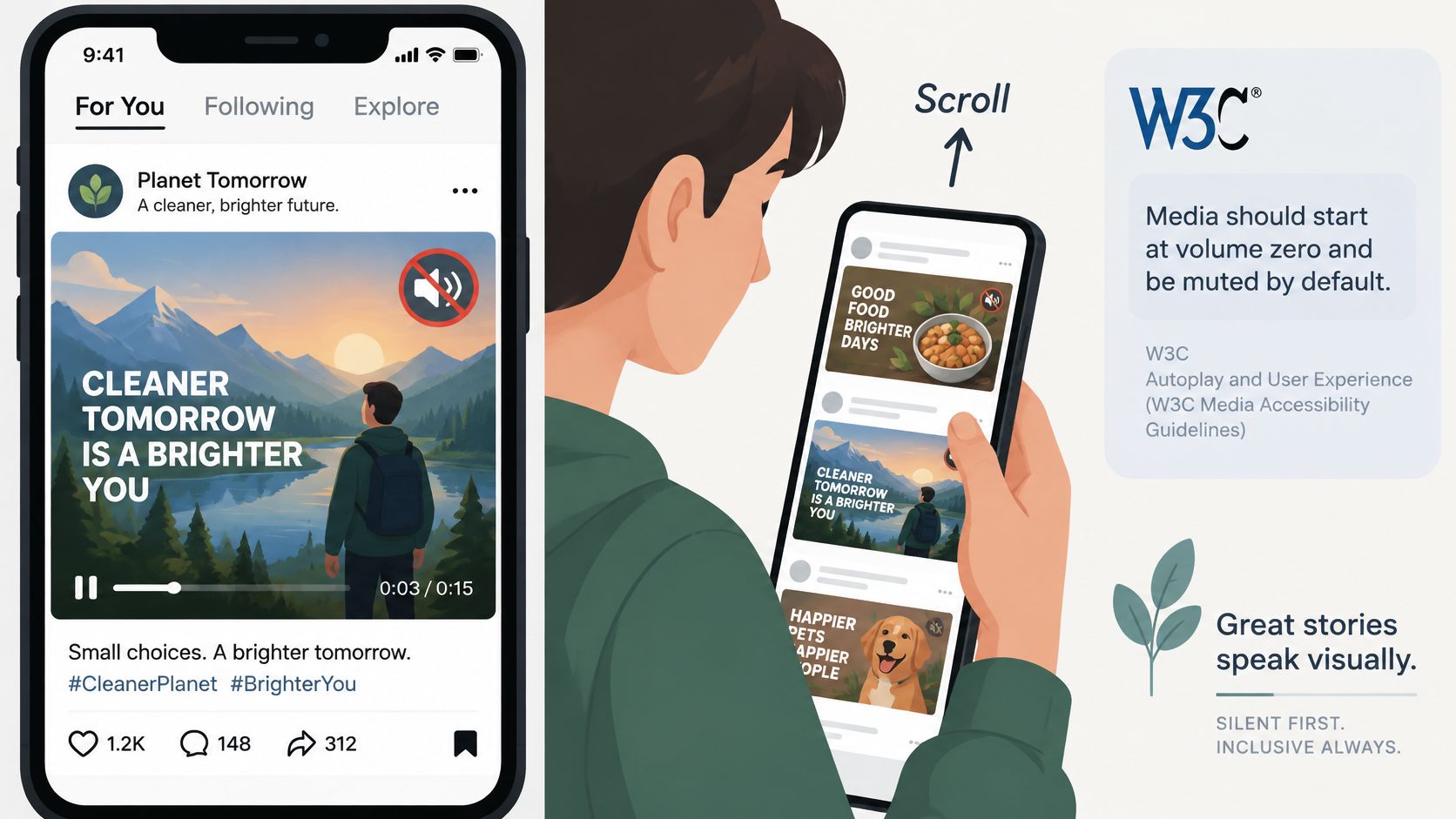
The W3C autoplay specification treats media as inaudible when volume is zero, the element is muted, or there is no audio track, and it describes an allowed-muted state in which that media may autoplay. Browsers still decide playback. Treat that as a reason to put the message on screen, not as a promise that audible autoplay will run.
The phone-sized viewing test should look like this.
Put the explanation on screen
ShipTeaser's videos are silent motion graphics. They contain no voice-over, no stock footage, and no avatars, and they do not use faces. The brand on screen comes from the customer's own page. Nothing in the audio track is available to carry the product story, because there is no narration to lean on.
A fifteen-second silent cut forces hard deletions. Drop the animated logo open. Drop any line that needs a spoken setup. Drop copy that only makes sense if the viewer already knows the product. What remains has to be readable at phone size in one pass.
Put the hook on screen immediately. Prefer a concrete outcome, a claim you can defend, or a product result the viewer can recognize.
Each scene gets one short line. Do not spend the frame on extra sentences just because the landing page has them.
- Hook: Give the intended user a reason to keep looking.
- Problem: Name the friction without a lengthy setup.
- Solution: Connect the product to that friction.
- Proof: Show something that supports the promise.
- Action: State the next useful step.
That five-beat structure is the whole video. A manual edit for spoken lines, burned-in captions, and a separate sound pass is where short videos consume hours. A silent, no-editor render skips that pass only if the page copy is already tight enough to read cold.
Rewrite the source before regenerating
ShipTeaser writes the on-screen lines from the landing page you paste. A dense headline or a hero that needs several clauses will show up in the render. Simplify the page, then generate again. There is no timeline and no editor for rewriting one line inside the finished file.
Mute the preview and watch at phone size. This is the check for whether the silent cut explains the product. Ask someone who does not know the product to name the problem and the next action. If either answer is fuzzy, change the page wording and render again before you publish.
Spoken videos are a different job. Typist's captioning guide for content creators covers captions for speech. On-screen product copy is not the same as speech captions, and ShipTeaser does not add subtitles or narration.
Use the landing-page video guide when you decide where the teaser sits on the site. Keep the copy beside it useful on its own. Visitors should not have to watch a moving file to understand the offer.
Test and Publish Your First Teaser
Review the first render before publishing. ShipTeaser videos may misread your brand or contain factual errors, so check each output against your product.
Run a controlled first test
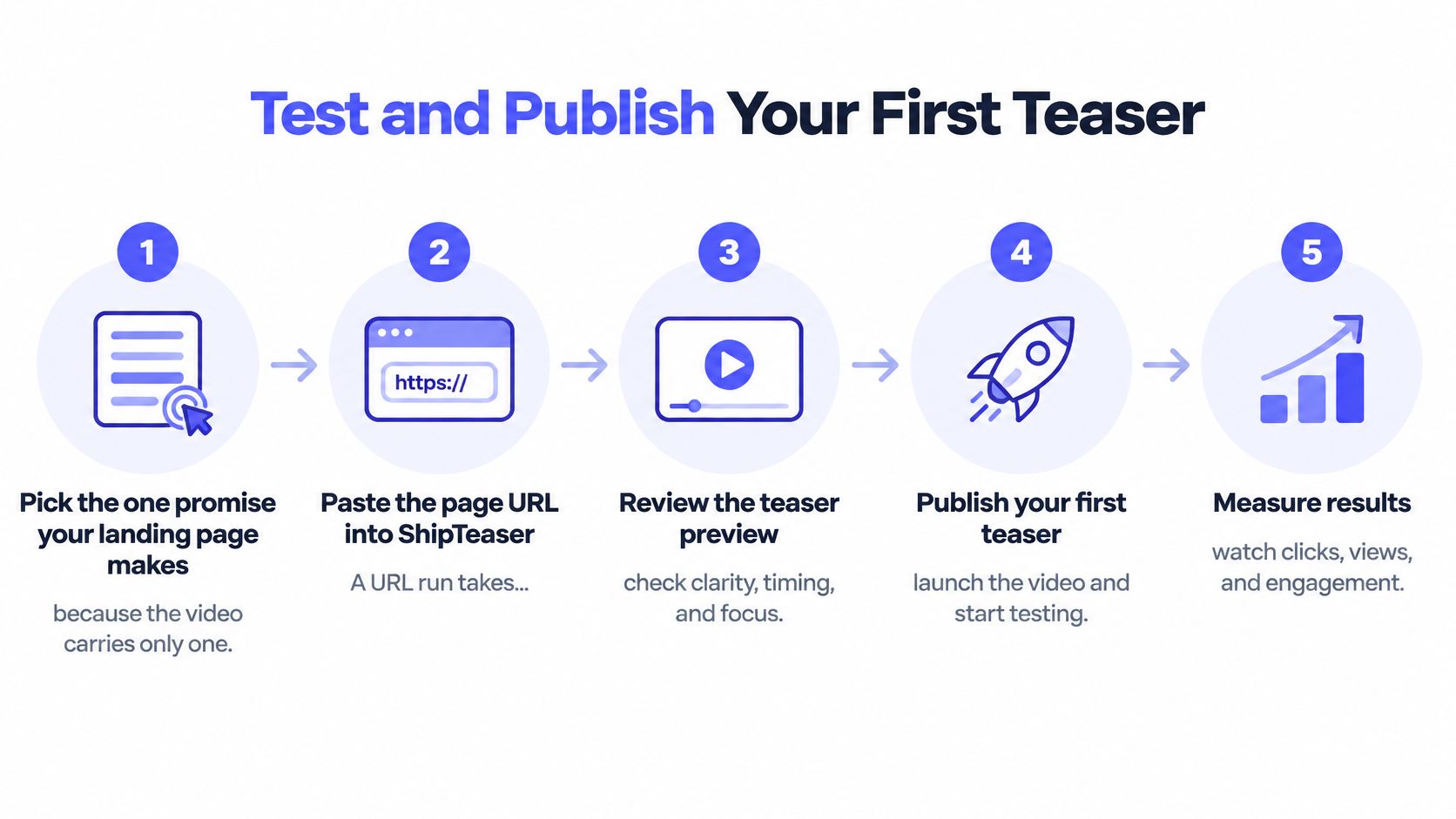
Pick the one promise your landing page makes. Write down the intended takeaway before generating. For example, a release-note app might promise a clearer announcement from an existing changelog. Keep secondary features from displacing that outcome.
Paste the page URL into ShipTeaser. The finished video is a 30-second, 1080p MP4, ready to download. The first video is free, needs no account, card or brief, and is ready in about five minutes.
Check every claim against the page and product. Review names, interface images, feature availability and proof statements. If a claim is inaccurate, revise the source page before generating again. ShipTeaser does not provide an editor or timeline for changing individual lines in the finished video.
Check the opening. Watch the first three seconds muted and confirm a new viewer can name the promised outcome.
Check the composition for each channel. Inspect the actual file you plan to post. A good-looking preview in one format does not guarantee that text will remain readable in another.
Publish to one channel first. Where available, compare first-three-second retention and clicks with the next version. Keep the destination and publishing context consistent so you can judge whether a change to the video made a difference.
Measure an outcome you can act on
Views show that someone encountered the video. Clicks show whether someone took the offered next step. Track both against the version and destination, then change one meaningful element at a time, such as the promise, opening frame or call to action.
HubSpot's 2025 video-marketing statistics report that 21% of marketers said short-form video delivered the highest ROI among content formats. Treat that as a reason to test short-form content, not as a prediction for your launch.
Before publishing: Confirm one promise, accurate claims, a clear opening and the channel you will test first.
Use the free first video to decide whether the result represents your product accurately. If you have recurring launch content to make, then consider whether a paid cadence fits your needs.
FAQ
Is 15 seconds enough to explain an unfamiliar software product?
Fifteen seconds holds one promise. Use it for the problem, one result, and a next step.
A second feature, a workflow tour, and a pricing slide do not fit. If three capabilities each need their own explanation, make three short videos. Use a longer demo only when a buyer must understand the workflow before they can judge the value.
That cut is the cost of the format. You trade completeness for a clip someone will finish. A 30-second ShipTeaser uses five beat cuts: hook, problem, solution, proof, and call to action. At 15 seconds the proof beat is usually the first thing you drop. On a URL-based maker, the hours you skip are timeline editing. The time you still spend is reviewing the render.
Can one teaser cover a landing page, a vertical feed and Product Hunt?
One concept can feed several placements. Each export still needs its own check.
Use 16:9 for a landing page, 9:16 for vertical feeds, and 1:1 for square posts. Read the type at phone size in every ratio. Lines that survive 16:9 often clip in 9:16.
Product Hunt gallery videos are YouTube links. Upload the MP4, set it to public, and paste the full URL into the gallery. A direct MP4 upload is not how that gallery works.
Does a ShipTeaser video need sound to work?
ShipTeaser videos carry the message without sound. They are silent motion graphics with no voice-over, no faces, and no stock footage. The benefit and the requested action have to be clear in the picture and the on-screen words.
Watch it muted at phone size before you post. If the ask only makes sense after someone turns the volume up, the cut failed.
What does a first test cost?
The first ShipTeaser video is free, with no credit card required. That test also needs no account and no brief.
Starter is $99 per month for 4 videos. Subscribe for a release schedule you will keep, not for a calendar you have not committed to. Check the free video for factual accuracy, brand fit, and whether the on-screen claim matches the page before you pay.
ShipTeaser turns a product URL into a 30-second, 1080p motion-graphics teaser with no timeline editing. Visit ShipTeaser, generate the free first video, and match it against your launch promise before you pick a paid plan.