Your software launch page is live, but your launch post still asks strangers to read a headline, inspect screenshots and work out the benefit themselves. You need a short visual explanation, not another production project.
AI explainer videos are short videos that software assembles from source material, such as product-page copy and brand assets. Software organizes the message into scenes and renders a file, while the founder remains responsible for factual accuracy. A short teaser can introduce a product's value, but it can't replace a detailed demonstration or prove a claim the source page never supported.
What an AI Explainer Video Is and How It Differs
Think of a page-based AI explainer as a trailer made from a landing page rather than existing footage. The software selects the material, arranges the message and adds motion. The useful input isn't an imaginative prompt. It's a clear description of an actual product.
Every version has three basic components:
- A script: The words that explain what the product does. A script can be on-screen text rather than spoken narration.
- Scenes: The visual sequence that connects the problem, product and benefit.
- A rendered file: The finished video you review before publishing.
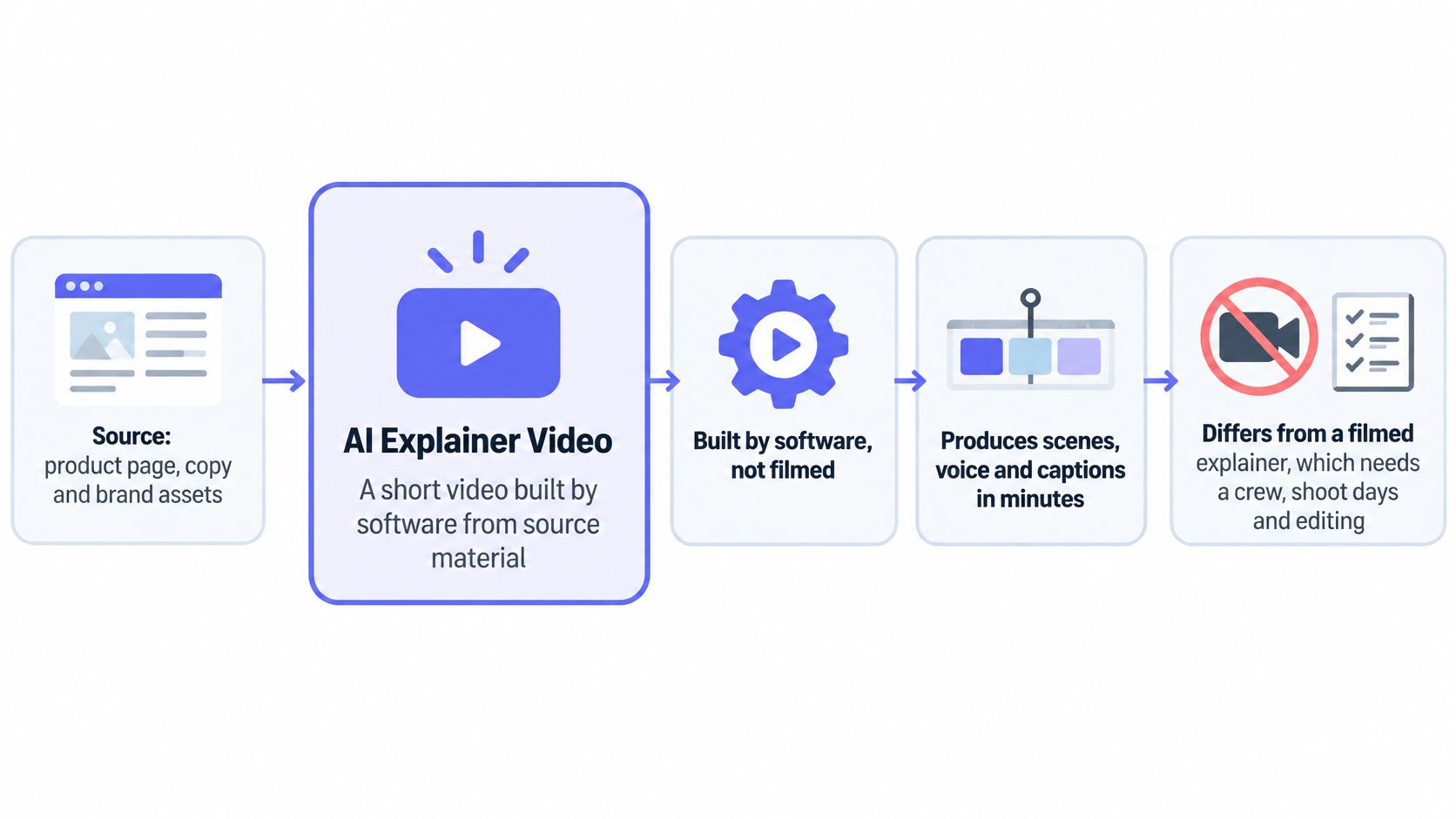
Production capabilities differ across AI video systems. Voice and captions aren't inherent to the category, and they aren't part of ShipTeaser's silent motion-graphics workflow.
A filmed explainer centers on recorded performance and an editing process. A screen recording captures the interface, but a recording alone doesn't explain why a viewer should care. You still need to choose the task, establish the problem and show the outcome.
For a deeper walkthrough-versus-introduction decision, ContentBuck explains when to use a product demo. ShipTeaser's product demo versus teaser guide applies that distinction to launch content.
Use a teaser for launch posts, product galleries, landing pages and feature announcements. Use a demonstration when someone needs to inspect a workflow before deciding.
Practical rule: A page-based video is only as accurate as the source page and the founder's review.
How Software Builds an AI Explainer From a Product Page
The pasted page is the brief. Software reads that source, assembles scenes and renders the file, so the quality of what goes in decides the quality of what comes out. The human check comes last, but preparing a trustworthy source comes first.
Prepare the page before generation
Supply a public product URL. Choose the page that explains the specific product or feature you're launching. ShipTeaser starts with a pasted URL, not a text-to-video prompt, and crawls that page for visuals and copy.
Make the source material useful. Page-based systems extract copy, screenshots, logos and visible brand cues. A page full of broad promises and decorative graphics gives the system little concrete material to explain. Specific feature names, one clear outcome and a visible product view give it something to work with.
Arrange the message into beats. Identify the hook, problem, solution, proof and next action in the existing copy. ShipTeaser uses words taken directly from the page or clearly derived from them, and ShipTeaser never writes new marketing copy for you. If a claim is missing from the page, it will not appear in the video.
The workflow is source-driven, with review after rendering.
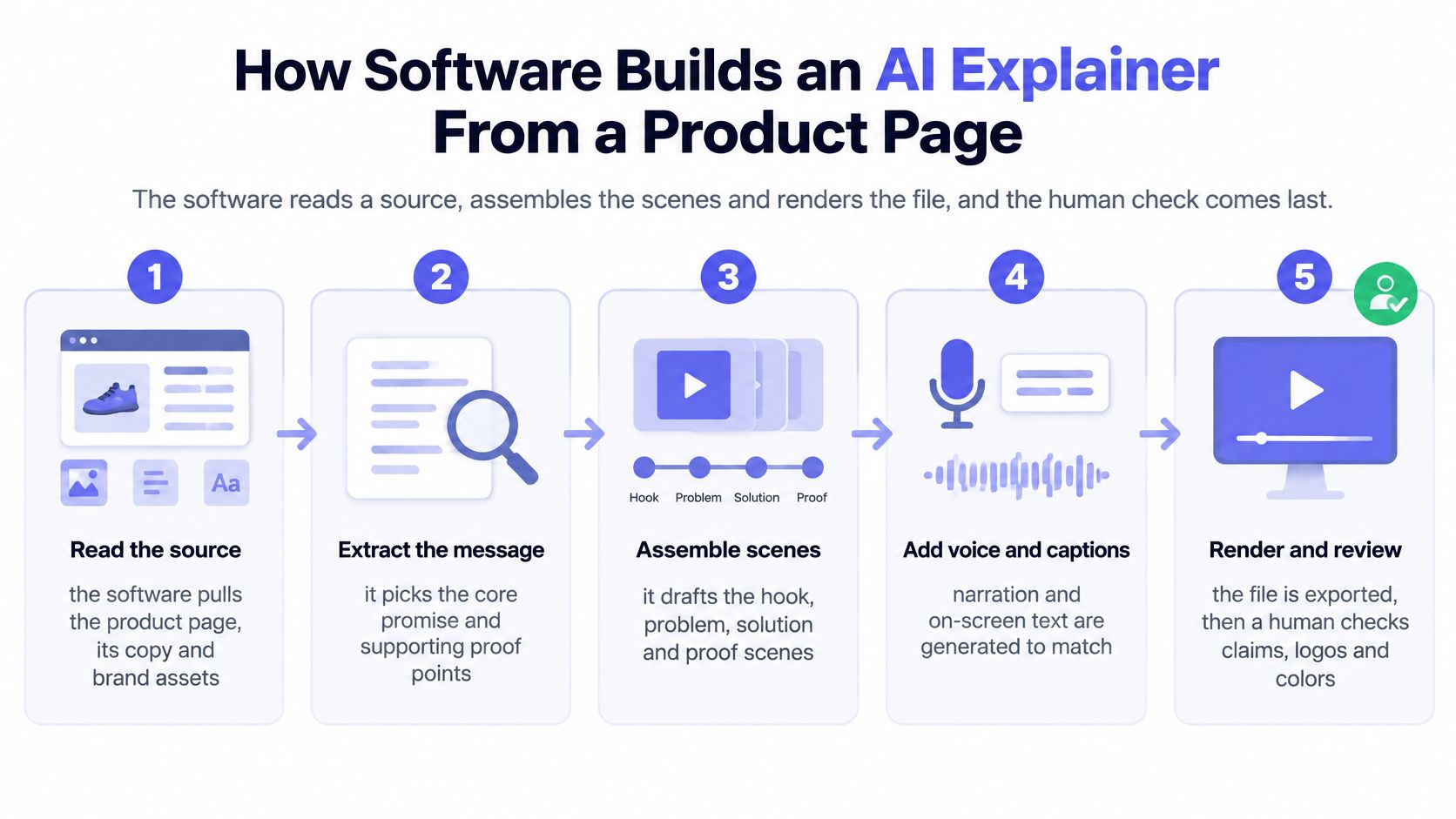
For ShipTeaser, the production sequence uses on-screen copy and motion graphics built from your own brand, not the voice-and-caption stage shown in the broader workflow illustration. There are no faces, no voice-over, no stock footage and no avatars.
Render for the placement, then inspect the result
Map each beat to a scene. Match a product benefit with the visual that supports it. A feedback inbox should illustrate consolidated feedback, not imply automatic prioritization unless the product offers that feature.
Match the frame to the placement. Where a tool offers ratio options, use 16:9 for horizontal placements, 1:1 for square feeds and 9:16 for vertical placements. ShipTeaser renders one 1080p MP4 with no export settings to configure, so preview how that frame reads where you plan to post it rather than assuming text stays readable in every feed.
Review the exported file. Compare the copy with the live page, inspect the brand marks and watch transitions for flicker. Generated videos can contain factual errors or misread the brand, so every video needs this review before it goes live. A successful render confirms that software produced a file, not that the product claims are correct.
ShipTeaser's URL-to-video workflow produces a 30-second, 1080p teaser, ready for review and posting, with the first video ready in about five minutes.
A correct first frame makes the product's purpose recognizable immediately. For a feedback product, that might mean a clear product view paired with the supported outcome of gathering feedback together, rather than an isolated logo or an abstract animation.
The Five Scenes Inside a 30-Second Teaser
A 30-second teaser works like a compressed launch argument: each scene gets one job, then makes room for the next. ShipTeaser builds five beat-cut scenes by default: hook, problem, solution, proof and call to action. The finished file is 30 seconds, 1080p and built for silent feeds, so the words on screen have to carry the sequence.
Scene timing in a 30-second teaser
Use this split as an editorial planning aid. The render can vary while keeping the same five beats, and every line of copy should come from the pasted page, word for word or clearly derived from it.
| Scene | Typical window | Job | Example for a project tool |
|---|---|---|---|
| Hook | 0-4 seconds | Show the outcome or the product working | Sprint planning finished in one click |
| Problem | 4-10 seconds | Name the pain the viewer already has | Feedback scattered across five tabs |
| Solution | 10-18 seconds | Show the product fixing that pain | All feedback in one inbox |
| Proof | 18-25 seconds | Use a real figure or detail from the page | A feature count or quote taken from the landing page |
| Call to action | 25-30 seconds | Name one next step | Start a free trial |
Short does not mean disposable. Wistia figures summarized by HubSpot's video marketing statistics found that videos under one minute averaged 16 seconds of watch time, so the opening scenes have to make sense before a viewer decides whether to keep watching.
Give each scene a distinct job
The hook presents the outcome before asking viewers to learn the product name. For a project app, one-click sprint planning is a strong opening only if that action really exists on the source page.
The problem names the familiar friction: feedback scattered across tabs. The solution then shows the relevant change, gathering feedback in an inbox. Random interface movement weakens the cause-and-effect line.
The proof adds something checkable: an attributed customer quote, a supported feature count or a concrete product detail. If the page has no numerical evidence, leave the claim qualitative.
The call to action names one next step. A trial invitation belongs here only if a trial is available.
For tightening the words before they become scenes, compare CreativeClaw on ad script structure with ShipTeaser's product video script guide. Then treat the generated video as a draft: match each caption to the page, confirm the proof exists and remove any benefit the page does not state before publishing.
If you can describe each beat in a sentence without repeating the previous beat, the structure holds.
Benefits Compared With Manual Video Production
Production options compared on effort and control
| Option | Time to first draft | Skills needed | Control over edits |
|---|---|---|---|
| Manual shoot and edit | Days to weeks, according to shoot and edit scope | Filming and editing | Full control of every frame |
| Freelance motion designer | Set by the agreed brief and delivery schedule | Writing a clear brief | Revisions through the designer |
| AI explainer from a product URL | Minutes | Choosing and reviewing the source | Control through the source and review, not frame edits |
These are planning categories, not delivery guarantees. A custom production schedule includes decisions that a fixed-format teaser deliberately removes.
The main gain for a solo builder is less production coordination. You don't have to arrange a shoot or learn timeline editing just to introduce a feature. A repeatable format also makes the next announcement easier to scope: choose a focused source page, generate and review.
A single approved message can support several placements. That doesn't mean publishing an identical file everywhere without inspection. Each crop still needs readable text and a visible call to action.
Strong format, limited promise
HubSpot's short-form video trends reports that 30% of both B2B and B2C marketers used short-form video in 2025, while a majority identified short-form video as the content format producing the highest return on investment. Those survey responses justify testing the format, not promising that your teaser will outperform a longer explanation.
The trade-offs matter. Page-derived production preserves weak positioning as readily as strong positioning. A silent teaser can communicate a concise visual claim, but it can't carry a spoken founder story.
Custom production also gives you more freedom to change pacing and individual frames. ShipTeaser's product video cost guide helps frame that effort-versus-control decision.
Ask a narrower question than whether AI is cheaper: Does this launch need a story told in voice, or a product claim understood at a glance?
Where AI Explainers Fail and How to Check Them
Common AI explainer failures and the check that catches them
| Symptom | Usual cause | Check before posting |
|---|---|---|
| Wrong feature claim | Script states a benefit the page never made | Match every line to a sentence on your page |
| Logo or interface shape changes | Generated visuals drift between frames | Watch frame by frame at full size |
| Text too dense to read | Copy compressed into a short runtime | Read each frame on a phone at arm's length |
| Brand colors look off | Extraction read the wrong colors | Compare against your brand guide |
| Viewer leaves in two seconds | Opening frame is a logo or fade | Confirm the first three seconds state the outcome |
The final row is a diagnostic scenario, not a measured audience benchmark. An opening that hides the product's purpose gives viewers little reason to continue.
The most dangerous failure is a plausible false claim. A video might turn helps organize feedback into automatically ranks customer requests. The wording sounds related, but the promised functionality is different.
Customers must review every ShipTeaser video before publication because generated videos may contain factual errors or misread the brand. Source-derived copy still needs checking for lost qualifiers, misleading emphasis and incorrect visual associations.
Use this checklist alongside the rendered file.
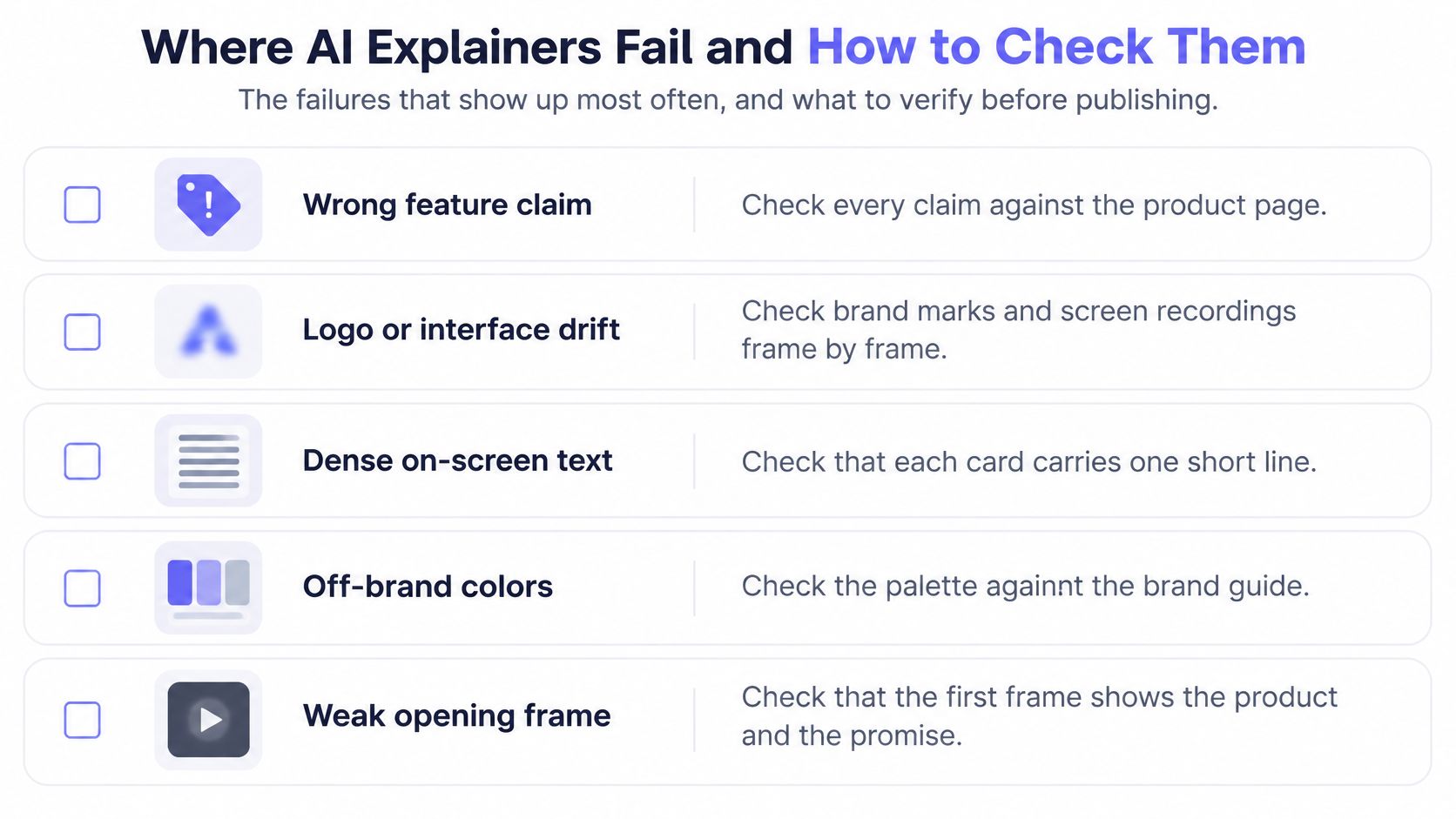
Run an accessibility preflight
- Phone-size reading: Read every card at arm's length without pausing playback.
- Contrast: Check that text remains distinct from moving backgrounds.
- Flashing: Reject rapid flashing and distracting brightness changes.
- Comprehension: As a practical test, ask whether each claim makes sense within five seconds.
- Caption handling: Add and verify captions separately if the publishing context requires them. ShipTeaser doesn't generate subtitles.
- Written alternative: Put the essential product explanation in the accompanying page or post for viewers who can't access the visuals.
Wistia's 2025 State of Video announcement reports that more than 60% of respondents using AI had used or planned to use AI captions, while caption adoption rose 572% since 2021. Captions and readable text deserve deliberate review, but on-screen text alone doesn't make a video accessible to people with vision disabilities.
Inspect motion separately from meaning
The VBench evaluation framework distinguishes frame-wise quality from temporal quality, including consistency and motion behavior. Apply that distinction by checking both individual frames and continuous playback.
ShipTeaser videos contain no voice-over, stock footage or avatars. Every claim therefore needs to work on screen without narration, even when an optional music bed is present.
Regenerate a file that fails review. Correcting the post text later won't repair a misleading claim inside an already shared video.
Disclosure and Which Parts Should Stay Human
Full automation isn't always the best production choice. Automate visual assembly, but don't automate evidence or replace the person responsible for a product promise.
Treat human oversight as a production decision, not a final approval gesture.
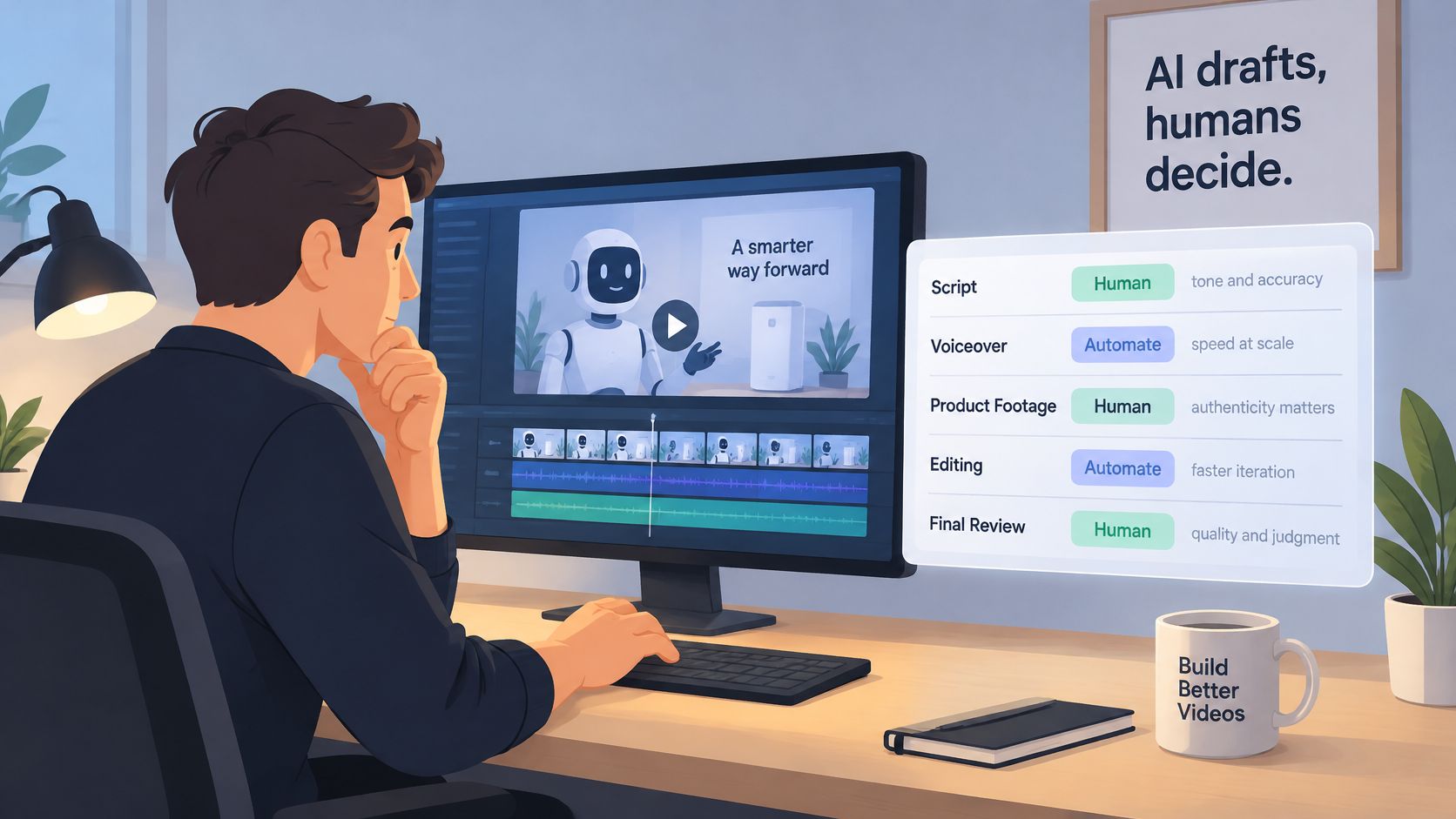
What to keep human and what to automate
| Element | Keep human or automate | Reason |
|---|---|---|
| Founder on camera | Keep human | A real person provides accountability that motion graphics can't, so record separately |
| Product interface | Keep real | Generated interface elements can drift and mislead viewers |
| Customer quotes | Keep real and attributed | Unverified testimonials damage trust |
| Scene motion and layout | Automate | Repeatable visuals reduce recurring assembly work |
| Disclosure statement | Keep human | The founder decides where and how to state that the video is generated |
A 2025 study published in Frontiers in Psychology found that AI disclosure can increase perceived trustworthiness for functional marketing content while weakening the emotional impact of hedonic content through reduced perceived authenticity. Disclosure isn't automatically a disadvantage. Its effect depends on what viewers expect from the content.
State AI involvement plainly in the post text or on the video page. For security, finance, hiring or health software, my recommendation is to pair concise motion graphics with real product evidence and an identifiable founder elsewhere in the launch materials.
For visual vocabulary, Mimic's common AI video effects explained can help distinguish decorative motion from effects that communicate meaning.
ShipTeaser doesn't use faces or record screens. Capture founder footage and real interface footage separately, and publish those assets outside ShipTeaser. Decide that production mix before rendering, not after a generated scene makes an unsupported impression.
Test One Teaser on Your Own Launch Page
A useful test fits in an afternoon: one live URL, one clear message and one call to action. Leave the full feature list out.
- Choose the page you'll share on launch day.
- Read the headline and select the claims viewers should remember.
- Remove any claim the page doesn't support.
- Paste the URL into ShipTeaser and generate the teaser.
- Compare the reviewed file with your current launch post.
The page carries the weight here. ShipTeaser crawls it for visuals and copy, and every line in the video comes from that page, word for word or clearly derived from it, so weak source copy produces a weak teaser. For placement decisions, ShipTeaser's landing-page video guide shows where a concise visual explanation belongs.
Make the test small enough to finish
ShipTeaser requires no editor, prompt or voice-over, and the first video is free with no account, card or brief needed. The listed plans are $99/mo for 4 videos per month (Starter), $199/mo for 8 videos per month (Growth) and $299/mo for 16 videos per month (Studio). Judge the monthly allowance against the announcements your team can support with clear source pages, not a desire to publish more for its own sake.
Review before publishing. Generated videos can contain factual errors or misread the brand, so watch the file muted, match every claim to the page and read the text at phone size. Ask whether the teaser makes the product easier to understand than the existing post alone.
Publication threshold: Post the teaser only if every check passes and the opening three seconds explain what the product does.
FAQ
What's the difference between an AI explainer video and an animated explainer?
A custom animated explainer is typically designed and assembled on an editing timeline. A page-based AI explainer uses software to assemble source material into a repeatable format, trading some creative flexibility for less manual production work.
Do AI explainer videos need a voice-over?
AI explainer videos don't need voice-over when the message works through readable on-screen text and visuals. ShipTeaser produces silent motion graphics with an optional music bed, so silent means no voice-over, not necessarily no audio.
How do I know an AI explainer video is accurate?
Match every claim to the source page, preserve important qualifications and inspect the exported file at full size. Review logos, interface details and transitions as carefully as the wording, because accurate text can still accompany a misleading visual.
Should I disclose that a video is AI-generated?
State AI involvement where viewers would reasonably expect production context, such as the accompanying post or video page. Keep real customer evidence, actual product screens and identifiable people in the broader launch materials when trust depends on them.
ShipTeaser turns a product URL into a short, branded motion-graphics teaser for your launch. Visit ShipTeaser to try a free first video, then check the claims and phone-size readability before you publish.